How to Save Instagram Photos in Full HD Quality
A complete guide to downloading Instagram photos — single posts, carousels, and profile pictures — in the highest available quality using iGram.
Free Instagram Downloader
Download Reels, Stories, Photos & Videos — no app needed.
Why Full Quality Matters
When you see a stunning photo on Instagram — a landscape shot, a product image, a piece of digital art — and you want to save it, the most obvious method is a screenshot. But screenshots are a poor substitute for the actual file, and the difference matters more than most people realize.
What you lose with a screenshot:
A screenshot captures what your screen displays at that moment, not the source file. On an iPhone 15 with a 2556 x 1179 pixel screen at standard zoom, a full-screen Instagram photo gets captured at your screen resolution, not Instagram's stored resolution. Add JPEG compression from the screenshot codec, and you have already lost meaningful quality.
If you view the photo in a small card format in your feed (not full-screen), the screenshot quality drops further. You are literally screenshotting a tiny version of the photo, then scaling it up — the result is blurry and pixelated.
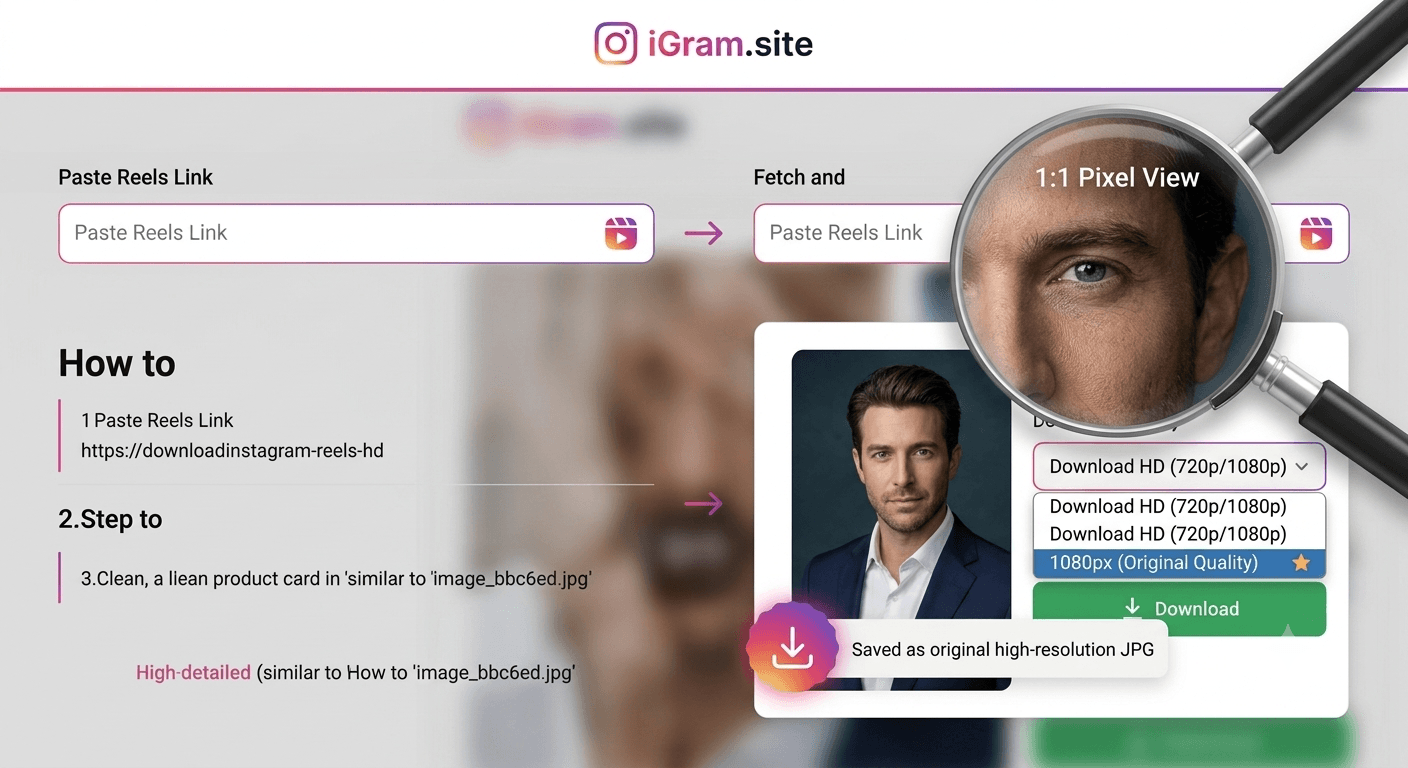
The downloaded file from iGram is different. It is the actual JPEG Instagram stores on their servers. For standard posts, that means 1080 pixels on the longest edge. For some newer photo formats and certain account types, resolutions can be higher. The file is clean, unmodified, and at the maximum quality Instagram makes available.
This matters if you want to:
- Print the photo (screenshots rarely hold up at print sizes)
- View it on a large monitor
- Use it as a desktop or phone wallpaper
- Analyze fine details (product photography, art, technical diagrams)
- Archive images in a way that preserves their actual quality
How Instagram Compresses Photos
Understanding Instagram's compression helps you set realistic expectations about what you will get when downloading.
When you or anyone else uploads a photo to Instagram, the platform automatically re-encodes it. Here is what happens:
Resolution limits: Instagram accepts photos up to approximately 8 MB in file size. It stores images at a maximum of 1080 pixels wide (or 1080 pixels tall for portrait images). If you upload a 4000 x 3000 pixel DSLR photo, Instagram scales it down to 1080 x 810 pixels before storing it.
JPEG compression: Instagram re-encodes images as JPEG files using its own compression settings. The quality level varies, but it is generally good enough for screen viewing. Some fine texture detail gets lost in compression, which is why professional photographers often find that Instagram "softens" their photos.
Aspect ratio enforcement: Instagram constrains photos to certain aspect ratios (square 1:1, portrait 4:5, landscape 1.91:1). Photos outside these ratios get cropped or padded with white space. What Instagram stores is the cropped/processed version.
This means: When iGram downloads a photo, it downloads exactly what Instagram stored — which is the post-compression, post-resize version. You are getting the best Instagram can offer, but it will not be your original pre-upload file. If you are a photographer who posted your work to Instagram, the only source of the original file is your own camera or storage.
Downloading a Single Instagram Photo
The most common use case: a single-image post from a public account.
Step 1: Find the photo on Instagram
You can find it in your feed, on a creator's profile, or through a direct link someone shared with you.
Step 2: Copy the post URL
On the Instagram app (mobile):
- Tap the three-dot menu (•••) in the top-right corner of the post
- Select "Copy link"
On the Instagram website (desktop):
- Click the three-dot menu (•••) at the top-right of the post
- Click "Copy link"
- Alternatively, copy the URL directly from your browser's address bar when viewing the post on its own page
The URL format looks like: https://www.instagram.com/p/ABC123xyz/
Step 3: Open iGram's Photo Downloader
Go to igram.site/photo in your browser.
Step 4: Paste and download
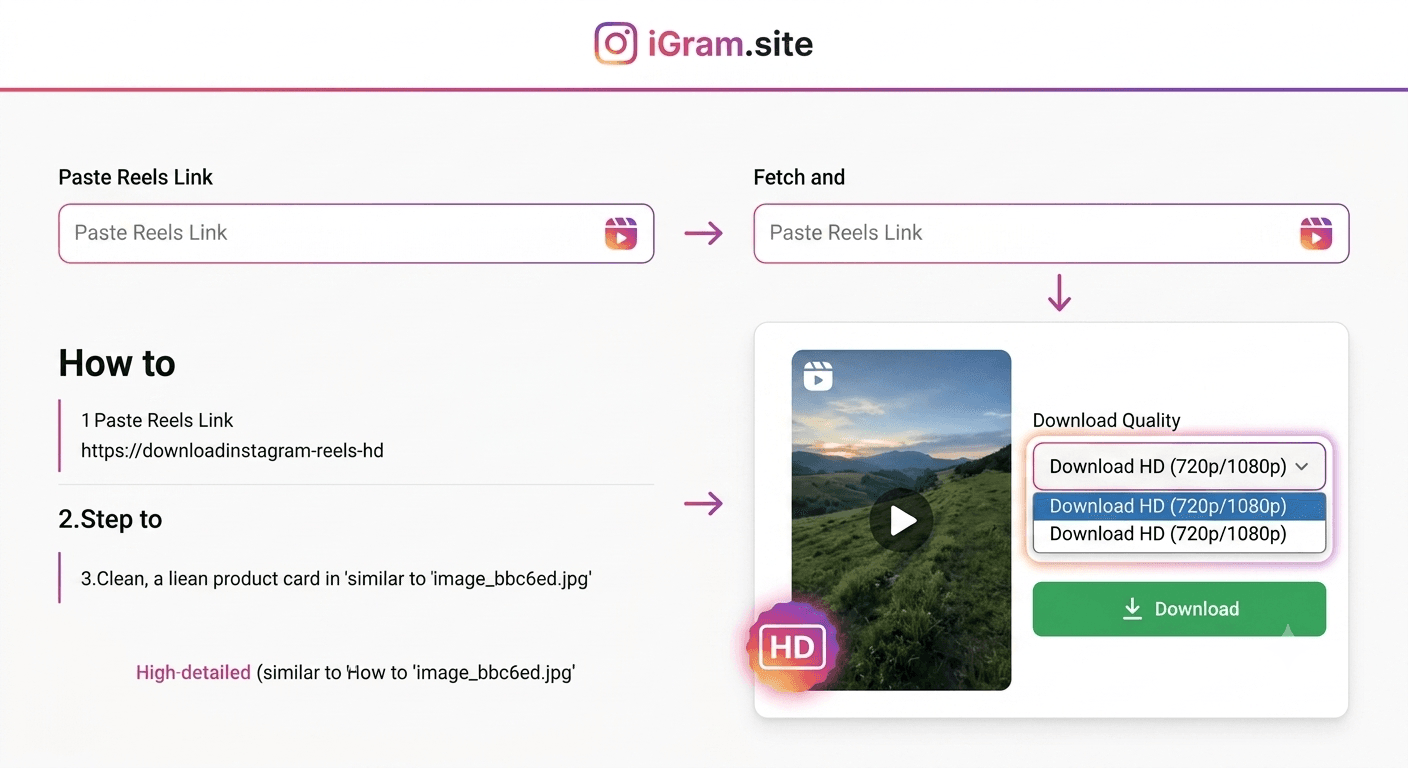
Paste the URL into the input field and click/tap Download. iGram will process the link and display a download button for the image.
Step 5: Save the file
Click the Download button. On desktop, the JPEG file saves to your Downloads folder automatically. On mobile:
- Android: The file saves to your Downloads folder and should appear in your Gallery.
- iPhone/iOS: Safari may display the image. Long-press it and choose "Save to Photos" or "Save Image." In newer iOS versions, Safari may offer a direct download to Files.
Downloading Carousel (Multi-Photo) Posts
Carousels are posts that contain multiple photos or videos (between 2 and 20 items) that users swipe through. They are extremely common for tutorials, before-and-after comparisons, product showcases, travel albums, and any content that benefits from multiple images.
The challenge with carousels: each item in the carousel is a separate media file, but the whole carousel shares a single URL. If you only copy the post URL and try to download it as a single photo, you will typically only get the first image.
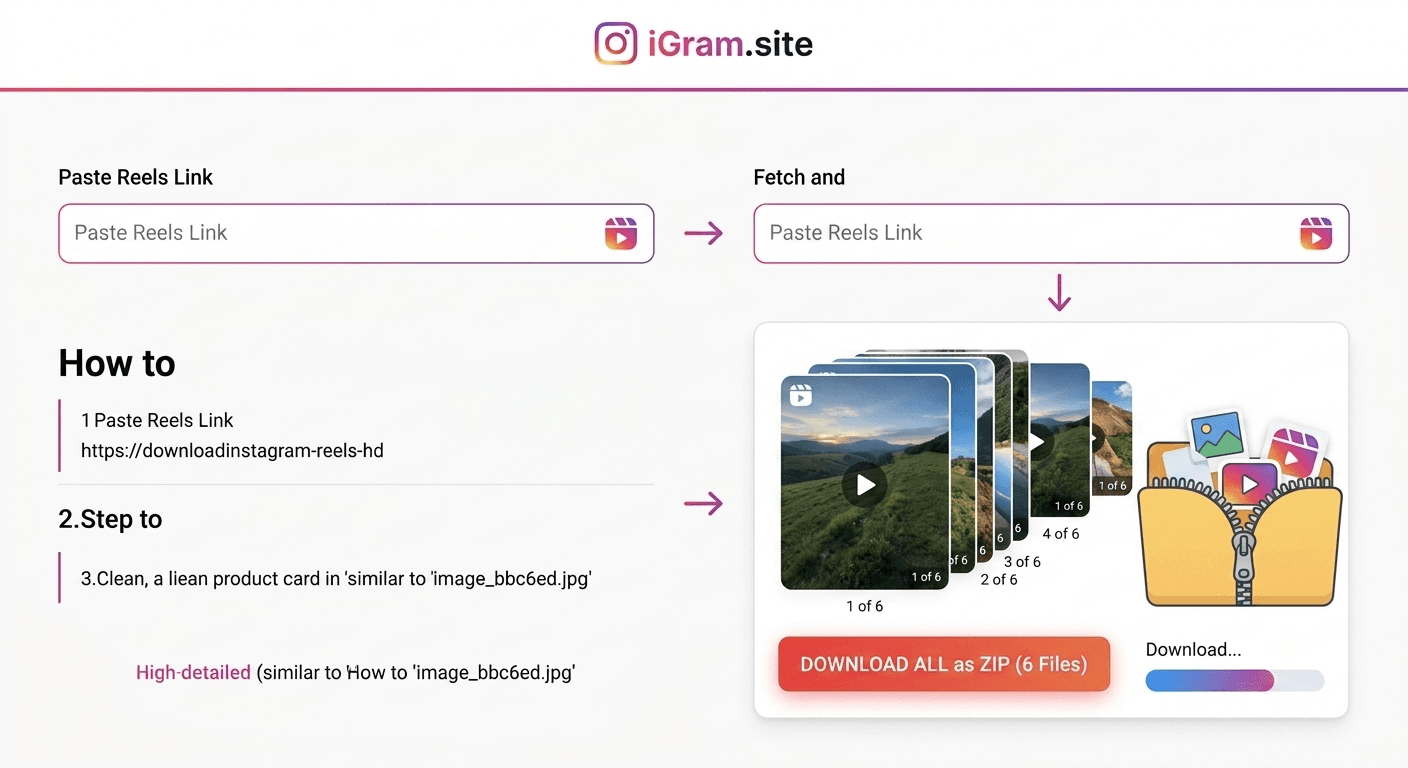
iGram's Carousel Downloader solves this by detecting that a URL points to a carousel and automatically retrieving all items — not just the first one.
How to download a full carousel:
Step 1: Copy the carousel post URL using the same method as for a single photo (three-dot menu > Copy link). The URL for a carousel post looks identical to a single-post URL: https://www.instagram.com/p/ABC123xyz/
Step 2: Go to igram.site/carousel specifically. Using the main downloader also works for carousels, but the carousel-specific page makes the multi-item nature clearer.
Step 3: Paste the URL and click Download.
Step 4: iGram will display download buttons for each item in the carousel — Photo 1, Photo 2, Photo 3, and so on, up to all 20 items.
Step 5: Download each item individually, or download the ones you need. You do not have to download all items.
Mixed carousels: Some carousel posts contain both photos and videos. iGram handles these correctly — images download as JPEG files and videos download as MP4 files, even when they are part of the same carousel.
Downloading Instagram Profile Pictures
Profile pictures are a special case. They appear as small circles on Instagram's interface, but the platform actually stores larger versions that are useful for other purposes — identifying someone in a search result, using as a contact photo, or simply viewing at a readable size.
Instagram does not directly expose a download link for profile pictures through its UI, but iGram can retrieve them.
How to download a profile picture:
Step 1: Navigate to the account's profile on Instagram (you can use the app or the website).
Step 2: Copy the profile URL. This looks like: https://www.instagram.com/username/
Step 3: Go to igram.site and paste the profile URL into the main downloader input field.
Step 4: iGram will identify this as a profile URL and retrieve the profile picture at the largest available size.
Quality note: Instagram stores profile pictures at a relatively low resolution compared to regular posts. Even with iGram, profile pictures will not be very large files. This is a limitation of what Instagram stores, not a limitation of the tool.
File Formats on Instagram
Instagram works almost exclusively with JPEG and MP4 files internally, regardless of what format a user uploads. Here is what to expect:
Photos are always saved as JPEG. Even if the original photo was a PNG, TIFF, or RAW file before being uploaded to Instagram, the platform converts and stores everything as JPEG. When iGram downloads a photo, it downloads the JPEG.
JPEG quality on Instagram is generally acceptable but not lossless. Instagram's JPEG compression is tuned for reasonable quality at manageable file sizes. Fine details in high-contrast edges (like text on an image, or very detailed textures) may show mild compression artifacts. This is inherent to JPEG compression and is not specific to Instagram.
Videos in carousels are MP4. When a carousel contains video items alongside photos, the video items download as MP4 files.
Cannot retrieve original formats: If you need the original PNG, RAW, or lossless format of a photo that was posted to Instagram, you must get it directly from the person who posted it. iGram can only retrieve what Instagram stores.
Common Issues and How to Fix Them
"Only one photo downloaded but it's a carousel"
You likely used the general downloader rather than the carousel-specific tool, or the carousel detection didn't trigger. Try pasting the URL into igram.site/carousel directly. If you see only one download button where you expected multiple, the post may actually be a single photo with a specific thumbnail, not a true carousel.
"I can't find the download link for the photo"
Make sure you are copying the post URL, not the profile URL or a hashtag URL. A valid photo post URL contains /p/ followed by a code: instagram.com/p/XXXXXXXXXXX/. If the URL you copied doesn't contain /p/, you may have copied the wrong link.
"The image quality looks lower than what I see on Instagram"
Two possible explanations:
-
You are comparing the downloaded JPEG (which is the source file) against Instagram's in-app display, which applies sharpening filters and HDR rendering on certain devices. The source file can look subtly different from the enhanced display version.
-
The original post was uploaded at low resolution. Some meme accounts, quote graphics, or screenshots that people post are inherently low-resolution. iGram downloads exactly what Instagram stores — it cannot upscale.
"The post URL says it doesn't exist"
The post was likely deleted by the creator, removed by Instagram for policy violations, or the account was deactivated. Once a post is deleted, it cannot be recovered through any means.
"The photo downloads as a WEBP or shows a broken file"
This rarely happens but can occur with specific browser configurations. Try using a different browser, or right-click the iGram download button and choose "Save link as" to force-save the file.
Organizing Your Saved Photos
Downloading Instagram photos is only useful if you can find them later. A few organizational habits will save you significant time:
Use descriptive filenames. Instagram-sourced files have machine-generated filenames like instagram-123456789.jpg. As soon as you download a photo, rename it to something meaningful: sunrise-patagonia-alex-strohl.jpg or logo-inspiration-gradient-2026.jpg.
Create a folder structure by purpose. If you download photos for multiple reasons — personal memories, design inspiration, product research, saved recipes — create a top-level folder for each category. Mixing everything into one "Instagram Downloads" folder makes retrieval difficult.
Add tags with your OS. Both macOS and Windows support file tagging or star ratings. macOS Finder lets you color-tag files; Windows lets you add tags in file properties. Use these to mark your favorites or sort by project.
Consider a reference management app. Tools like Adobe Bridge (free), Eagle (paid), or even Apple Photos let you import downloaded images, add notes, and organize them far more richly than a plain folder structure. If you are a designer using Instagram for inspiration research, a dedicated reference app pays for itself quickly.
Back up to cloud storage. Photos you download for important reasons should live in at least two places. Sync your Instagram downloads folder to Google Drive, Dropbox, or iCloud to protect against device failure.
A Note on Using Others' Photos
Downloading a photo and using it are two different things legally and ethically.
Copyright belongs to the creator. Every photo posted on Instagram is copyrighted by the person who took it or commissioned it, regardless of whether they registered the copyright or added a watermark. Downloading a photo for personal reference does not transfer any rights to you.
Personal use vs. redistribution. Saving a photo to your phone's gallery as personal inspiration is very different from republishing it on your own Instagram, website, or marketing materials. The latter is copyright infringement even if you credit the creator, unless you have explicit permission.
How to use others' photos correctly:
- For social media: use Instagram's native repost/share features, or get direct permission from the creator
- For commercial use: contact the creator directly and negotiate rights or licensing
- For editorial use (journalism, criticism, commentary): fair use doctrine in the US may apply, but consult a lawyer for commercial contexts
- For inspiration: download freely for your own eyes, but create your own original work rather than copying the content directly
iGram is a tool for accessing content. The responsibility for how that content is used lies entirely with the person doing the downloading.
Frequently Asked Questions
What is the maximum resolution I can download an Instagram photo at? Instagram stores standard feed photos at 1080 pixels on the longest edge. Some newer formats (square posts, certain high-resolution uploads) may be stored slightly larger, but 1080px is the most common maximum. iGram always downloads at the highest available resolution.
Can I download photos from a private account? No. Photos from private accounts require Instagram login credentials to access, and iGram does not request or use your credentials. Only publicly posted photos are downloadable.
Does downloading a photo notify the creator? No. Downloading via iGram is invisible to the creator — it does not trigger any in-app notification, view count, or engagement metric.
Can I download all photos from a specific account at once? iGram processes one post URL at a time. Bulk profile-level downloading (all photos from a specific account) is not a feature of iGram. You would need to download each post individually.
Will the downloaded file have the same color as what I see on Instagram? Possibly not exactly. Instagram applies color profile adjustments for in-app display (particularly on HDR-capable devices). The downloaded JPEG contains the raw image data, which may look slightly different in a standard image viewer than in Instagram's color-managed environment.
Is there a limit to how many photos I can download? No. iGram does not impose per-session or daily limits on downloads for standard use.
What if the carousel has a mix of photos and videos? The iGram Carousel Downloader handles mixed-format carousels. Photos download as JPEG and videos download as MP4 — all from the same URL.
Can I download Instagram photos on a smart TV or streaming device? If your smart TV has a web browser (some Samsung and LG TVs do), you can technically use iGram on it. However, the experience is not optimized for TV browsers. Downloading on a phone or computer and then transferring the file to your TV via USB or casting is a more practical approach.
Written by
iGram Team
The iGram team creates in-depth guides on Instagram tools, downloading tips, and social media best practices.
Related Articles
Ready to Download?
Free, fast, no registration. Download any Instagram content in seconds.
Open iGram — It's Free