How to Download Instagram Reels: Complete Step-by-Step Guide
Learn how to download Instagram Reels to your phone or computer for free using iGram — no app installation required.
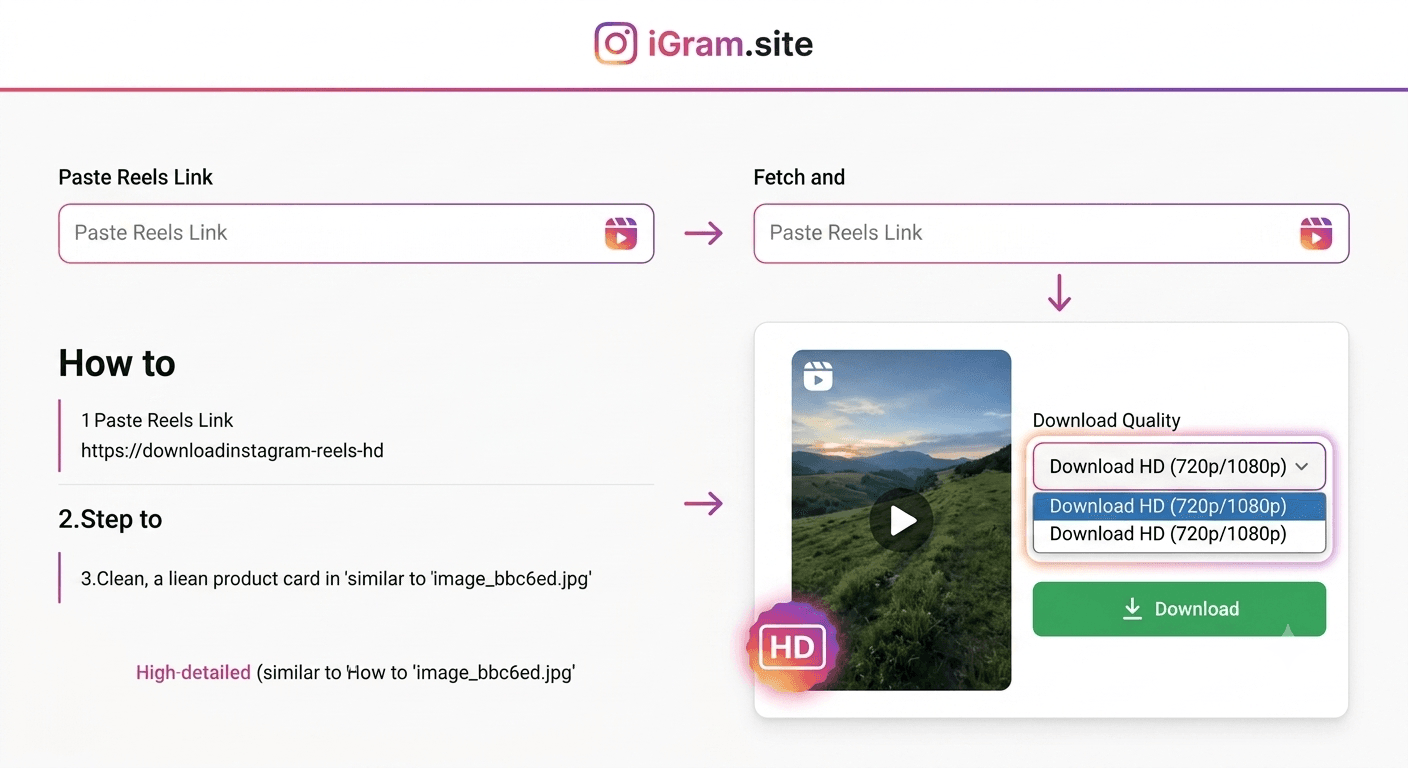
Free Instagram Downloader
Download Reels, Stories, Photos & Videos — no app needed.
Why Save Instagram Reels?
Instagram Reels are short, engaging videos — typically anywhere from 15 seconds to 90 seconds — and they have become the dominant content format on the platform. Creators publish tutorials, recipes, fitness routines, travel clips, comedy sketches, product reviews, and creative art in reel format because the algorithm rewards short-form video with exceptional reach.
The problem is that Instagram is fundamentally a connected experience. Reels require an internet connection to stream. If your connection drops, if you travel to an area with poor coverage, or if you simply want to watch something without burning through your mobile data plan, those reels become inaccessible.
There are several practical reasons people choose to save Reels:
Offline viewing: Planes, trains, remote areas, and international travel all present situations where mobile data is limited or unavailable. Having reels saved locally means you can watch your favorite tutorials or entertainment without connectivity.
Data conservation: Streaming HD video repeatedly uses a surprising amount of data. If you find yourself rewatching a workout routine or a recipe tutorial multiple times, downloading it once and playing it locally saves significant bandwidth.
Research and reference: Content creators, marketers, and designers often save reels as inspiration or competitive research. Having a local library of reference material is far more practical than bookmarking within Instagram — bookmarks disappear if a creator deletes a post or makes their account private.
Backup before it disappears: Creators delete content, accounts get suspended, and posts get removed. If a reel matters to you, the only way to guarantee permanent access is to save a local copy.
Sharing outside Instagram: Sometimes you want to send a video to someone who isn't on Instagram, share it via another platform, or use it in a presentation. A downloaded MP4 file is far more versatile than an Instagram link.
What You Need Before You Start
Before following the steps below, make sure you have:
- A working internet connection (needed to fetch the reel from Instagram's servers)
- The Instagram app or a browser to locate and copy the reel URL
- A browser on your download device — iGram works in Safari, Chrome, Firefox, Edge, and most modern browsers
- Storage space — standard 30-60 second reels in HD are typically 10–50 MB
You do not need to:
- Create an iGram account
- Install any app or browser extension
- Provide your Instagram login credentials
- Pay anything
How to Copy a Reel URL
Getting the URL right is the most important step. Here is how to copy it correctly on each platform.
On the Instagram Mobile App (Android or iOS)
- Find the Reel you want to download. You can find it in your feed, on a creator's profile, or in the Reels tab.
- Tap the three-dot menu (•••) in the bottom-right corner of the reel.
- Select "Copy link" from the menu that appears.
The URL is now in your clipboard. It will look something like: https://www.instagram.com/reel/ABC123xyz/
On Instagram's Website (Desktop Browser)
- Navigate to the reel on instagram.com.
- Click the three-dot menu (•••) in the top-right corner of the post.
- Click "Copy link."
Alternatively, you can copy the URL directly from your browser's address bar — but only when you are viewing the reel on its own page (not scrolled past it in a feed).
Step-by-Step: Downloading on Android
Android is the most straightforward platform for downloading reels because files save directly to your Downloads folder or Gallery.
Step 1: Open the Instagram app and find the Reel you want to save.
Step 2: Tap the three-dot menu (•••) on the reel and select "Copy link."
Step 3: Open a new browser tab — Chrome is recommended — and go to igram.site/reels-downloader.
Step 4: Tap the input field and paste the URL you copied (long-press the field and tap "Paste").
Step 5: Tap the Download button. iGram will process the URL and display download options within a few seconds.
Step 6: Tap the download option labeled with the highest resolution (usually 1080p or HD). Your browser will prompt you to confirm the download.
Step 7: The file downloads to your device's Downloads folder. On most Android devices, you can find it in the Files app or in your Gallery if your device automatically imports downloads to the media library.
Pro tip for Android: If you tap "Download" and the video opens in your browser instead of saving, long-press the download button and select "Download link" or "Save video." This forces the browser to save the file rather than stream it.
Step-by-Step: Downloading on iPhone (iOS)
Downloading on iPhone requires one extra step because of how iOS handles file downloads in Safari.
Step 1: Open the Instagram app and find the Reel you want to save.
Step 2: Tap the three-dot menu (•••) and select "Copy link."
Step 3: Open Safari (recommended on iOS) and navigate to igram.site/reels-downloader.
Step 4: Tap the input field and paste the URL.
Step 5: Tap Download. iGram processes the URL and shows download options.
Step 6: Tap the highest-quality download option. Safari will display a preview.
Step 7: In the preview, tap the Share icon (the box with an arrow pointing up), then select "Save Video." This saves the MP4 to your iPhone's Camera Roll (Photos app).
Alternative method using the Files app: If Safari offers a "Download" option directly (which appears in newer iOS versions), the file saves to iCloud Drive > Downloads by default. You can then move it to your Photos app from the Files app if needed.
Note for iPhone users using Chrome or Firefox on iOS: These browsers handle downloads differently. Safari tends to give the cleanest experience for saving videos on iPhone. If you experience issues with other browsers, switch to Safari.
Step-by-Step: Downloading on Desktop
Downloading on a computer is the most straightforward experience of all three platforms.
Step 1: Open your browser and go to the Instagram website (instagram.com) or the Instagram app if you use it on desktop.
Step 2: Navigate to the Reel. Click the three-dot menu and select "Copy link." Alternatively, copy the URL from your browser's address bar when viewing the reel on its own page.
Step 3: Open a new tab and go to igram.site/reels-downloader.
Step 4: Click the input field and paste the URL (Ctrl+V on Windows/Linux, Command+V on Mac).
Step 5: Click Download. The page will display available quality options.
Step 6: Click the download button for your preferred quality. On most desktop browsers, this triggers an immediate file download to your configured Downloads folder.
Step 7: Find the file in your Downloads folder. It will be saved as an MP4 file, compatible with VLC, Windows Media Player, QuickTime, and any other standard video player.
Understanding HD Quality for Reels
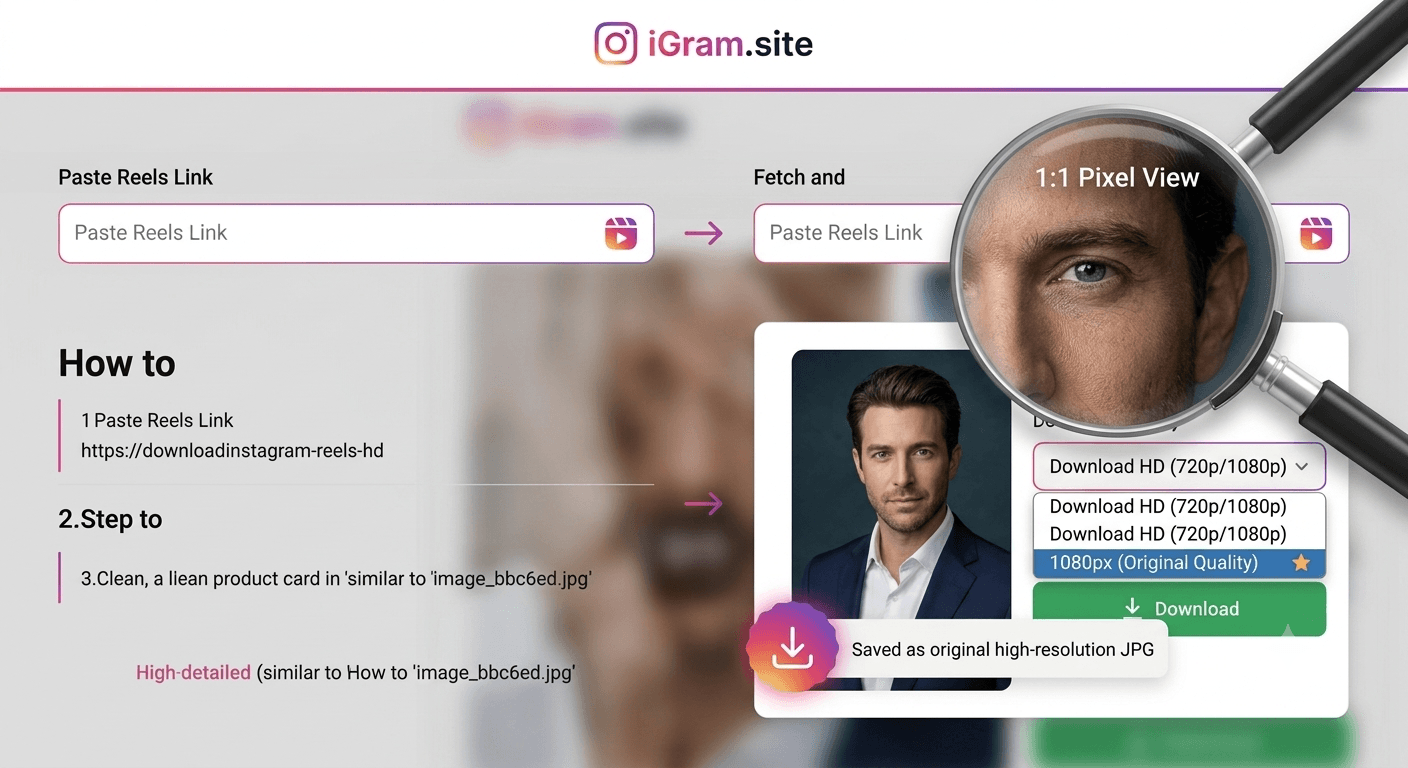
When iGram offers "HD" or "1080p" quality, it means it is retrieving the highest-resolution version that Instagram stores. Here is what that means in practice:
Instagram re-encodes all uploaded videos. When a creator uploads a 4K video, Instagram compresses it and stores it at 1080p maximum. This means the quality you get from iGram is exactly what Instagram serves — iGram cannot provide quality that exceeds what Instagram hosts.
For most reels, the maximum available resolution is 1080 x 1920 pixels (vertical 9:16 format) at 30 frames per second, encoded in H.264. This is genuine full HD and looks excellent on any phone screen or computer monitor.
Some older reels or reels posted before Instagram improved its compression may be available only in lower resolutions (720p or 480p). This is a limitation of what Instagram stores, not a limitation of iGram.
When multiple quality options appear, the highest number is always the best choice unless you specifically need a smaller file size.
Troubleshooting Common Issues
"This content is from a private account"
If the account that posted the reel has a private profile, iGram cannot retrieve the content without the account owner's credentials. The only public reels you can download are from accounts that are set to public. For your own private account content, see the iGram Private Account Downloader page for more information.
"Link not found" or "Invalid URL" error
This usually means one of three things:
- The URL was copied incorrectly. Try copying it again. Make sure the URL starts with
https://www.instagram.com/reel/— if you have a different format, it may not be a reel link. - The post has been deleted. If the creator removed the reel, iGram cannot retrieve it — the content no longer exists on Instagram's servers.
- The link has expired. Some shared links expire after a certain period. Try finding the reel again through the creator's profile and copying a fresh URL.
The video downloads but has no sound
This is rare and is typically a device or browser issue rather than an iGram issue. Try opening the downloaded MP4 file in a different media player. If the sound is missing in all players, the original reel may have been posted without audio, or Instagram may have muted it due to a copyright claim.
The download button appears but nothing happens when I tap it
On mobile browsers, pop-up blockers can sometimes interfere with downloads. Try disabling your browser's pop-up blocker for igram.site, or switch to a different browser.
Region restrictions
Some reels are region-restricted and may not be accessible depending on your geographic location. iGram's servers are located in regions where most content is accessible, so in practice region restrictions affect downloads far less often than they affect viewing on Instagram directly.
Tips for Organizing Your Saved Reels
Once you start downloading reels regularly, your Downloads folder can get cluttered quickly. Here are some practical organization strategies:
Create topic folders: On your phone or computer, create folders by category — "Recipes," "Workouts," "Design Inspiration," "Travel Ideas" — and move reels into the appropriate folder after downloading.
Rename files immediately: Downloaded reels will have generic filenames (often a string of letters and numbers from Instagram's CDN). Rename them to something descriptive immediately after downloading — for example, "pasta-carbonara-technique.mp4" — while the content is fresh in your mind.
Use a dedicated media player: Apps like VLC (available on Android, iOS, Windows, Mac) let you create playlists and organize video files into categories within the app, without moving the actual files around on your device.
Date your collections: If you are saving reels for ongoing research, adding the date to folder names ("2026-07 Design Refs") makes it easier to find content from a specific period.
Back up to cloud storage: If you are building a significant library, consider syncing your reels folder to cloud storage (Google Drive, iCloud, Dropbox). This protects against device loss and makes the collection accessible across all your devices.
Frequently Asked Questions
Is it legal to download Instagram Reels? Downloading reels for personal, non-commercial use is generally tolerated in most jurisdictions. However, Instagram's terms of service restrict unauthorized downloading. The key distinction is personal use versus redistribution or commercial exploitation — using someone's reel in your own content without permission is copyright infringement regardless of how you obtained it.
Can I download a Reel without the creator knowing? Yes. iGram retrieves media from Instagram's public CDN and does not trigger any notification to the creator. The creator has no way of knowing their reel was downloaded.
How large are downloaded Reel files? A typical 30-second reel in HD is roughly 15–30 MB. A 60-second reel might be 30–60 MB. Longer reels naturally produce larger files.
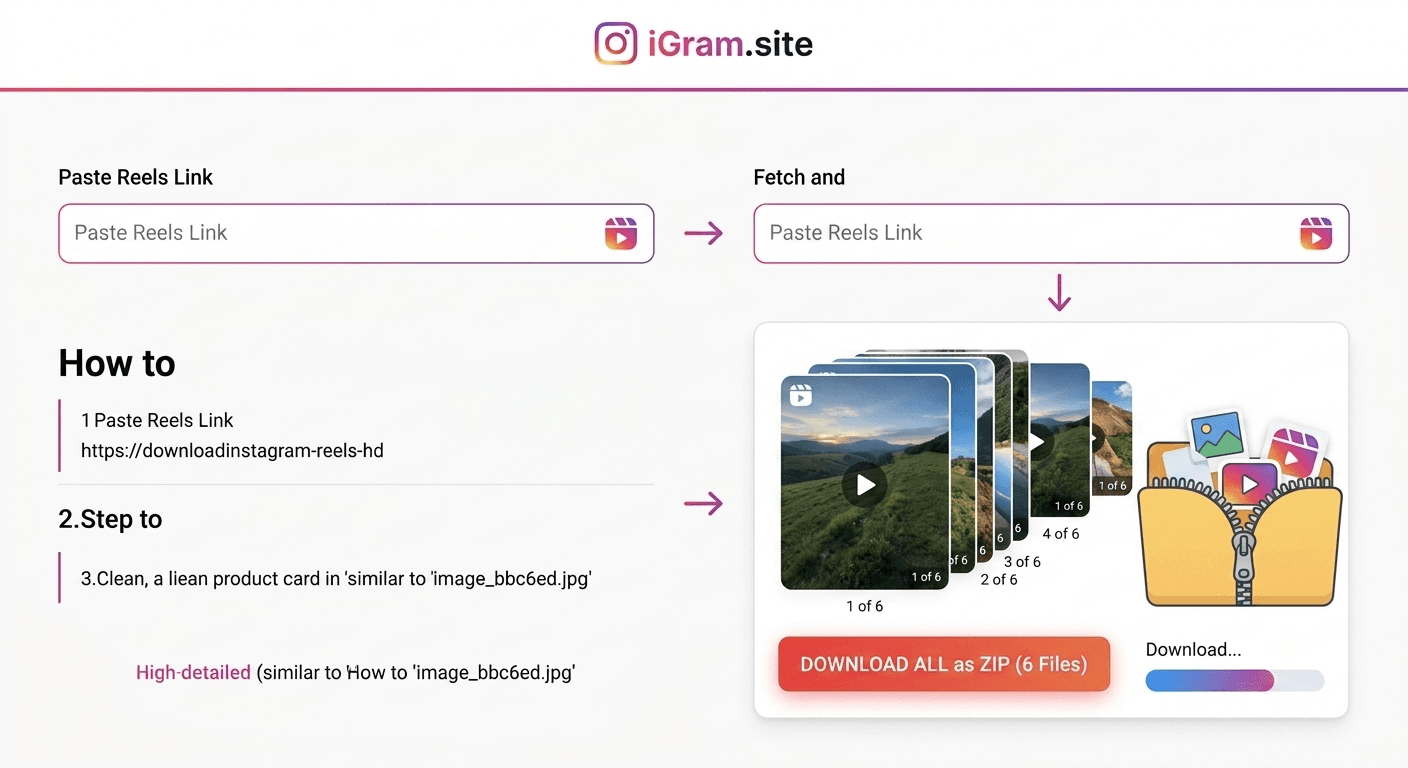
Can I download multiple Reels at once? iGram processes one URL at a time. For batch downloading, simply repeat the process for each reel. There is no limit to how many reels you can download in a session.
Why does the downloaded video look different from what I see on Instagram? Instagram applies various filters and effects during playback (like HDR tone mapping on certain devices). The downloaded file is the raw video without those display-level adjustments. On most screens, the quality is identical or better than what you see in the app.
Does iGram work for Reels from business accounts? Yes, as long as the account is public. Whether the account is personal, creator, or business makes no difference — the only factor is whether the account is set to public or private.
Can I download a Reel that was shared with me via Direct Message? Only if the original post is from a public account. Pasting the link from a DM into iGram will work if the underlying reel is publicly accessible. If the account is private, iGram cannot retrieve the content.
What happens if iGram is down? iGram maintains high uptime, but if you experience issues, try refreshing the page or returning after a few minutes. Instagram occasionally makes changes to its infrastructure that temporarily affect third-party downloaders — these are usually resolved quickly.
Written by
iGram Team
The iGram team creates in-depth guides on Instagram tools, downloading tips, and social media best practices.
Related Articles
Ready to Download?
Free, fast, no registration. Download any Instagram content in seconds.
Open iGram — It's Free