How to Download Instagram Story Highlights Anonymously
Story Highlights don't expire, but they can disappear anytime. Learn how to download Instagram Highlights for free without the account owner knowing.
Free Instagram Downloader
Download Reels, Stories, Photos & Videos — no app needed.
Instagram Story Highlights sit in a row of circles just below a profile's bio. They look permanent. They feel permanent. But they are not guaranteed to stay — an account owner can delete them at any time, or they can disappear if the account itself goes down. If a highlight contains information, instructions, a product announcement, or content you genuinely need, waiting is a risk.
Downloading highlights is also one of the most misunderstood Instagram actions. People assume the account owner gets a notification. They do not. This guide explains why, walks through the exact download process, and covers every variation from public profiles to private accounts, video to photo highlights.
What Instagram Story Highlights Actually Are
When someone posts an Instagram Story, it disappears after 24 hours — that is the core mechanic of the Story format. Highlights are the creator's way of breaking that rule. They can pin selected stories to their profile permanently by adding them to a Highlight collection, giving each collection a custom name and cover image.
From a technical standpoint, highlights are a curated playlist of story media (photos and videos) that Instagram stores outside the normal 24-hour expiry window. The media files themselves live on Instagram's servers at a standard CDN URL, the same way regular posts do.
Key characteristics of highlights:
- They do not expire automatically — only if the creator deletes them or the account closes.
- They can contain a mix of photos and short videos (each story frame is up to 60 seconds).
- Viewing a highlight does not notify the creator unless you are viewing a live, active story that has been added to the highlight within the past 24 hours (the "seen by" window).
- A single profile can have up to 100 highlights, each containing up to 100 story frames.
Why Anonymity Matters When Downloading Highlights
The concern most people have is simple: will the account owner know I downloaded this?
The answer is no, and here is the technical reason why.
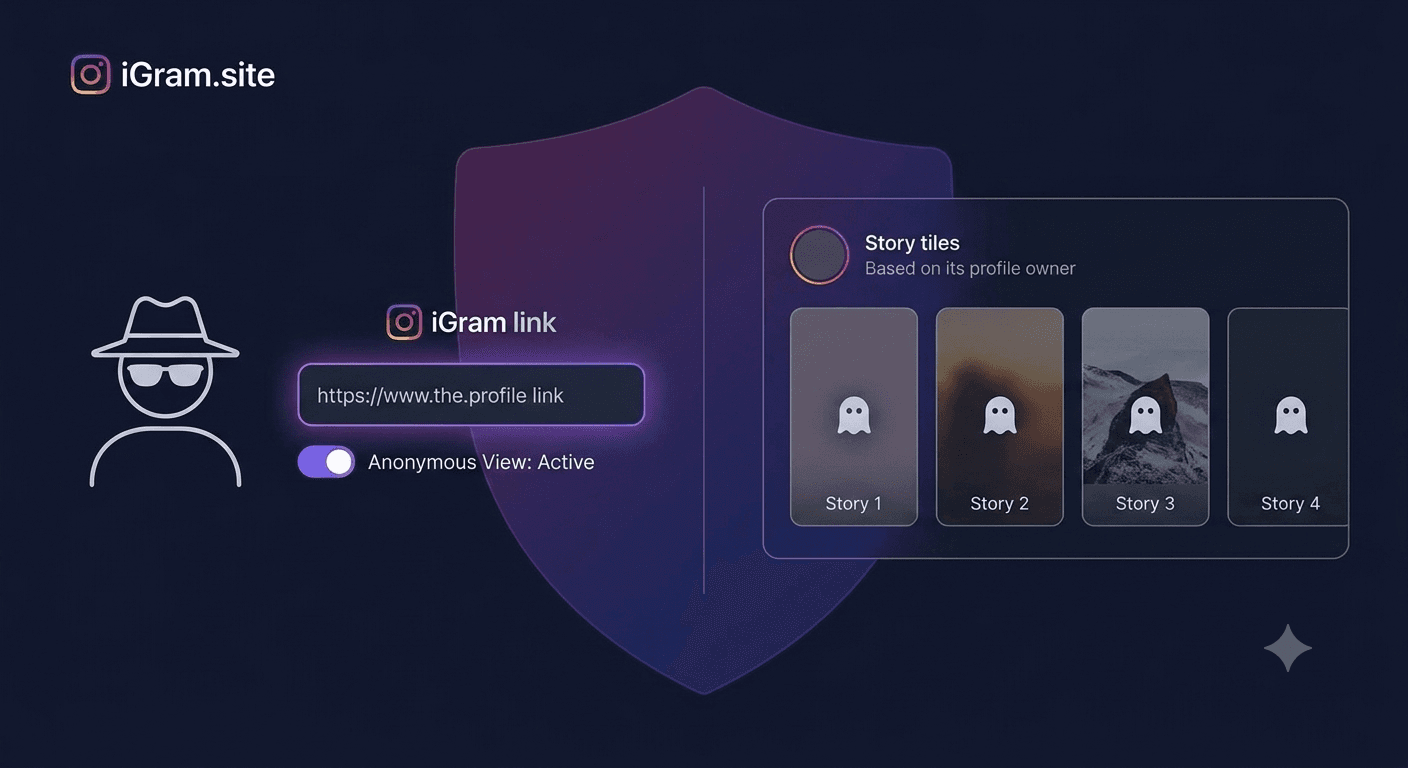
Instagram's "Seen by" notification for Stories only tracks views within the active 24-hour story window. Once a story is added to a Highlight and more than 24 hours have passed, the creator can no longer see who has viewed it. The Highlight still exists, but the view tracking window has closed.
When you download a highlight using iGram:
- There is no Instagram API call that involves your identity — iGram fetches the media via a server-side request, not through your logged-in Instagram account.
- No "like," "save," or view event is registered against your profile.
- The account owner receives no notification of any kind.
This means that whether you are researching a competitor's marketing approach, referencing a product tutorial you want to save, or archiving your own content, the download is completely invisible to the creator.
Step-by-Step: Downloading Instagram Highlights
iGram's dedicated Highlight Downloader is the fastest way to save highlight content. Here is the complete process.
Step 1: Find the profile with the highlight you want. Open Instagram (app or browser) and navigate to the account's profile page.
Step 2: Open the specific highlight collection. Tap or click on the highlight circle you want to download. This opens the highlight in story-view mode, cycling through the frames in that collection.
Step 3: Copy the highlight link.
- On the Instagram app: Tap the three-dot menu (⋯) in the bottom-right corner while the highlight is playing. Tap "Copy Link."
- On Instagram's web interface: Open the highlight, then copy the URL from your browser address bar. The URL will look like
instagram.com/stories/highlights/[numeric ID]/.
Step 4: Go to iGram's Highlight Downloader. Visit igram.site/story-saver and paste the copied link into the input field.
Step 5: Choose what to download. iGram will parse the highlight collection and display all the individual media items (photos and videos) within it. You can download the entire collection or select specific items.
Step 6: Save your files. Click download on each item. Your browser will save the files to your downloads folder in their original format — MP4 for videos, JPG for photos.
Highlight Reel vs. Individual Highlight Stories
This distinction confuses many users, and it is worth clarifying.
A Highlight collection (also called a Highlight reel) is the named group — think of it as a folder. For example, a creator might have a highlight called "Recipes" containing 47 individual story frames.
An Individual highlight story is one frame within that collection — one photo or one short video clip.
When you paste a Highlight collection link into iGram, it shows you all the individual frames within that collection. You can then:
- Download the entire collection at once (if your browser supports batch downloads).
- Download only specific frames you care about.
You cannot currently paste a link to a specific frame within a highlight directly from the Instagram app — the link you copy always points to the whole collection. iGram handles this by presenting all frames and letting you choose.
What if the highlight has 80+ frames? iGram still loads them all. For very large highlight collections, the page may take a few seconds longer to parse. Give it 10–15 seconds before assuming something went wrong.
How to Find the Highlight URL
The URL format for an Instagram highlight is: https://www.instagram.com/stories/highlights/[17-19 digit numeric ID]/
From the Instagram app:
- Open the profile page.
- Tap the highlight circle to open it.
- Tap the three-dot menu while it is playing.
- Tap "Copy Link."
- The copied text is the full highlight URL.
From the Instagram web interface:
- Open the profile in a browser.
- Click a highlight circle — it opens in a lightbox or redirects to the story view.
- The URL in the browser address bar is the highlight URL. Copy it directly.
Troubleshooting URL issues: If the URL you copied does not contain "highlights" in it, you may have copied a regular story URL or a post URL instead. Regular stories (not in a highlight) can be downloaded via iGram's Story Downloader, but their link format is different and they expire after 24 hours.
Public vs. Private Account Highlights
Public accounts: Highlights from public accounts are accessible without any authentication. Paste the URL into iGram and download immediately. No login, no account required.
Private accounts: If the account is private, only their approved followers can see the highlights on Instagram. iGram's standard Highlight Downloader cannot access private account highlights because it does not have follower access to that account.
For private accounts you follow, iGram's Private Account Downloader uses a different approach to handle authentication — but this should only be used for accounts you legitimately follow and for personal archiving purposes. Attempting to access highlights from a private account you do not follow is outside what iGram supports and raises clear ethical and legal issues.
Real Use Cases for Downloading Highlights
Competitor research: Brands and creators frequently use highlights to showcase campaigns, product launches, and tutorials. Marketing teams monitor competitors' highlights for strategic intelligence. Downloading them creates an offline reference without repeated visits to the profile.
Saving your own content as backup: If you manage a business Instagram account and have spent months building highlight collections — product demos, customer testimonials, event coverage — those are assets. They exist only on Instagram's servers unless you back them up. iGram lets you download your own highlights as an offline archive so a hacked account or accidental deletion does not mean permanent loss.
Content inspiration and reference: Designers, writers, and content creators browse Instagram for reference and inspiration. Downloaded highlights can be organized locally into mood boards or reference libraries without depending on continuous internet access or Instagram's search.
Training and tutorials: Many educators and coaches post structured tutorial content in highlights. Downloading a tutorial highlight series means you can follow along offline, pause freely, and refer back without navigating Instagram repeatedly.
Journalism and documentation: Journalists sometimes need to preserve Instagram content that may be deleted. A downloaded copy of a highlight serves as a timestamped record. Pair this with a screenshot of the profile URL and access date for proper documentation.
Video Highlights vs. Photo Highlights
Highlights can contain photos, videos, or a mix of both. The download behavior differs slightly.
Photo highlights: Downloaded as JPG files. These are the full-resolution images as uploaded by the creator. For Stories, this is typically the native phone resolution (often 1080 × 1920). iGram delivers the highest available resolution from Instagram's CDN.
Video highlights: Downloaded as MP4 files. Story videos are recorded vertically (9:16 aspect ratio) and run up to 60 seconds per frame. The quality is typically 720p for most accounts, though some creators upload at higher resolutions.
Mixed collections: When a highlight contains both photos and videos, iGram displays them in sequence and shows their format type. You can download each item individually with a single click per file.
Common Errors and How to Fix Them
Error: "Highlight not found" or empty results
- Confirm the account is public. Private account highlights require the Private Account Downloader.
- Check that the highlight still exists — the creator may have deleted it between when you copied the link and when you attempted to download.
- Make sure your copied link includes the numeric highlight ID. A link that ends in just the username is a profile link, not a highlight link.
Error: Black screen or blank video frames
This occasionally happens when Instagram's CDN returns a processing placeholder instead of the actual video file. Wait 5–10 minutes and try again. This is an Instagram-side issue, not an iGram problem, and it typically resolves itself.
Error: Some frames load but others do not
Very large highlight collections (80–100 frames) sometimes have one or two frames that fail to parse. Refresh the iGram results page. If a specific frame consistently fails, try downloading the others and separately attempt the problematic frame after a few minutes.
Error: Link is rejected as invalid
Instagram occasionally changes its URL patterns. If a link you copied is being rejected, try opening the highlight on Instagram's web interface (instagram.com in a browser rather than the app) and copy the URL from the address bar instead. Web-format URLs are consistently accepted by iGram.
Organizing Your Downloaded Highlights
Downloaded highlights arrive as sequentially numbered files. Without organization, a collection of 40 frames becomes hard to navigate quickly. A simple system:
Folder naming:
Create a folder per highlight collection. Name it [Account]_[Highlight Name]_[Download Date]. For example: brand_xyz_ProductLaunches_2026-07-08.
File numbering: iGram's downloads often arrive in order. If they do not (browser download behavior varies), the file creation timestamp will reflect the download sequence.
Tagging video vs. photo: If you mix downloads, your operating system can filter by file type. In Finder on Mac: sort by Kind. In Windows Explorer: filter by file type.
Cloud backup: After organizing, upload to a cloud folder (Google Drive, Dropbox, iCloud) for redundant storage. A local copy alone is not a backup — it is just a single point of failure on your device.
FAQ
Does the account owner know when I view their highlights? Once a story frame has been in a highlight for more than 24 hours, the creator's "Seen by" tracking no longer updates. Viewing highlights after that window is completely anonymous. Downloading via iGram adds no additional visibility to your activity.
Can I download highlights from accounts I follow but that are private? iGram's standard Highlight Downloader works only for public accounts. For private accounts, the Private Account Downloader handles this differently — but it applies only to accounts you are approved to follow.
How many highlight frames can I download at once? iGram parses and presents all frames in a highlight collection simultaneously. You download each frame individually with one click per file. There is no hard cap, though very large collections (close to the 100-frame maximum) may take slightly longer to parse.
Will the video quality match what I see on Instagram? Yes. iGram fetches from Instagram's CDN at the highest available resolution for that content. Story videos are typically 720p; photos are full resolution. There is no transcoding or quality reduction step.
Can I re-download a highlight later if the creator adds new frames to it? Yes. Highlights are dynamic — creators can add or remove story frames from a collection at any time. If you download a highlight today and the creator adds 10 new frames next week, you would need to download again to capture the new content. iGram will show you the current state of the highlight at the time of your request.
What format are photo highlights saved in? JPG. Instagram stores story photos as JPEG files, and iGram delivers them in the same format without conversion.
Is there a limit to how many highlights I can download per day? iGram does not impose a per-day download limit for standard use. You can download as many highlights as you need. If you are attempting very high-volume downloads rapidly, normal browser behavior (connection limits) applies, but for typical personal or research use there is no restriction.
What if a highlight disappears between when I find it and when I try to download it? Once a creator deletes a highlight, the content is removed from Instagram's servers. iGram (or any tool) cannot retrieve content that no longer exists. If you find a highlight you want to preserve, download it promptly rather than bookmarking it to revisit later.
Written by
iGram Team
The iGram team creates in-depth guides on Instagram tools, downloading tips, and social media best practices.
Related Articles
Ready to Download?
Free, fast, no registration. Download any Instagram content in seconds.
Open iGram — It's Free