How to Download Instagram Stories Before They Disappear
Stories vanish in 24 hours. Learn how to save Instagram Stories to your device instantly using iGram's free story downloader.
Free Instagram Downloader
Download Reels, Stories, Photos & Videos — no app needed.
The 24-Hour Problem
Instagram Stories were designed with intentional impermanence. When a creator posts a story, it lives for exactly 24 hours before disappearing permanently from Instagram's public interface. This was a deliberate product decision — stories are supposed to feel casual, temporary, and low-stakes compared to permanent feed posts.
That ephemerality is part of what makes stories compelling. Creators share behind-the-scenes moments, time-sensitive offers, spontaneous thoughts, and real-time event coverage because the content doesn't need to be polished or permanent. Stories get 500 million daily active viewers globally, making them one of the most-consumed content formats on the internet.
The problem is that the 24-hour limit works against you if:
- You see a story that contains information you want to reference later (a recommendation, an address, a recipe, a discount code)
- A creator you follow shares a story while you're offline or asleep, and you miss it
- You want to save a memory — a friend's travel update, a family moment someone shared
- You're a content creator and you want to save your own stories before they expire
- You do competitive research and want to track what other creators are posting
iGram's Story Downloader solves this by letting you save stories to your device while they are still live — as actual files, not just a screenshot.
Public Stories vs Private Stories
Before walking through the download steps, it is worth clarifying an important distinction that affects what iGram can and cannot do.
Public Account Stories
If an Instagram account is set to public, anyone can view their stories — logged in or not. These stories are technically accessible over the web, which means iGram can retrieve them. The iGram Story Downloader works reliably for all public account stories, both video and image formats.
Private Account Stories
If an account is set to private, their stories are visible only to approved followers. iGram cannot bypass this privacy setting. Retrieving a private account's stories would require Instagram login credentials for an account that follows them — and iGram, correctly, does not request or store your Instagram credentials.
If you want to save a story from a private account and you legitimately follow that account, Instagram's own data export tool (Settings > Your activity > Download your information) is an option for your own content. For content posted by others on private accounts, the ethical approach is simply to ask the creator to share the content directly with you.
Your Own Stories (Regardless of Account Type)
If you want to save your own stories from your own account — whether it is public or private — you can share the direct story link with yourself (copy the link while viewing your own story) and use iGram to download it while it is still live. This is a practical shortcut for creators who want to archive their own story content without waiting for Instagram's data export process.
How to Download Instagram Stories Using iGram
The process is straightforward but requires finding the right URL, which works slightly differently for stories than for regular posts.
Getting a Story URL on Mobile
-
Open the Instagram app and navigate to the story you want to save. Stories appear in the circles at the top of your feed or on the creator's profile page.
-
While viewing the story, tap the three-dot menu (•••) at the bottom of the screen (on some versions of the app, it appears at the top right).
-
Select "Copy link" from the menu.
The story link looks like: https://www.instagram.com/stories/username/1234567890/
-
Open your browser and go to igram.site/story-saver.
-
Paste the URL into the input field and tap Download.
-
iGram will process the URL and show you download buttons for the story frame. Tap the appropriate button to save the file.
Getting a Story URL on Desktop
Instagram stories are accessible on the desktop website as well.
-
Go to instagram.com and click on a story from the circles at the top of your feed, or navigate to a creator's profile and click their story ring.
-
While viewing the story in the lightbox (the darkened overlay), click the three-dot menu at the bottom right of the story.
-
Click "Copy link."
-
Open a new tab, go to igram.site/story-saver, paste the URL, and click Download.
Important: Stories Must Still Be Live
Story download links only work while the story is active (within its 24-hour window). If a story has expired, the URL returns an error because the content has been removed from Instagram's servers. If the story has been added to the creator's Highlights, you can download it from Highlights even after the 24-hour window — see the section below on Highlights.
Downloading Story Videos vs Story Photos
Instagram stories can be either videos (up to 60 seconds per story frame) or static images. iGram handles both:
Video stories download as MP4 files. The quality is whatever Instagram encodes the story at — typically vertical 1080 x 1920 pixels, the same format as Reels. Story videos are always vertical (9:16 aspect ratio) and usually between 5 and 60 seconds per frame.
Photo stories download as JPEG files. Instagram compresses story photos, typically to 1080 x 1920 pixels for portrait images, maintaining the original aspect ratio for other proportions.
When you navigate to a story, iGram identifies whether it is video or image and presents the appropriate download option. You do not need to tell it — the tool detects this automatically.
If a creator posts a story sequence (multiple story frames back to back), each frame has its own URL. You would need to copy the link to each individual frame to download them separately. This is the most time-consuming aspect of story downloading, and it is why Highlights (which bundle related stories) are particularly useful for archiving.
Saving Story Highlights
Story Highlights are the permanent circles that creators pin to their profile beneath their bio. Creators curate Highlights to showcase their best stories — travel albums, product features, tutorials, Q&A sessions, and more. Highlights don't expire the way regular stories do, but they can be deleted or edited by the creator at any time.
The iGram Highlight Downloader is built specifically for this content type. To download a highlight:
- Go to the creator's profile.
- Tap on one of their Highlight circles.
- While viewing a specific highlight frame, copy the link using the three-dot menu (same as for regular stories).
- Paste it into the iGram Highlight Downloader.
Highlight downloads work identically to story downloads — the same file formats, same quality, same process. The key difference is that Highlight links do not expire, so you can save them at any time, not just within a 24-hour window.
Anonymous Viewing and Downloading
One aspect of stories worth understanding: Instagram notifies creators when someone views their story. The story viewer list shows every account that watched a particular story frame within the 24-hour window.
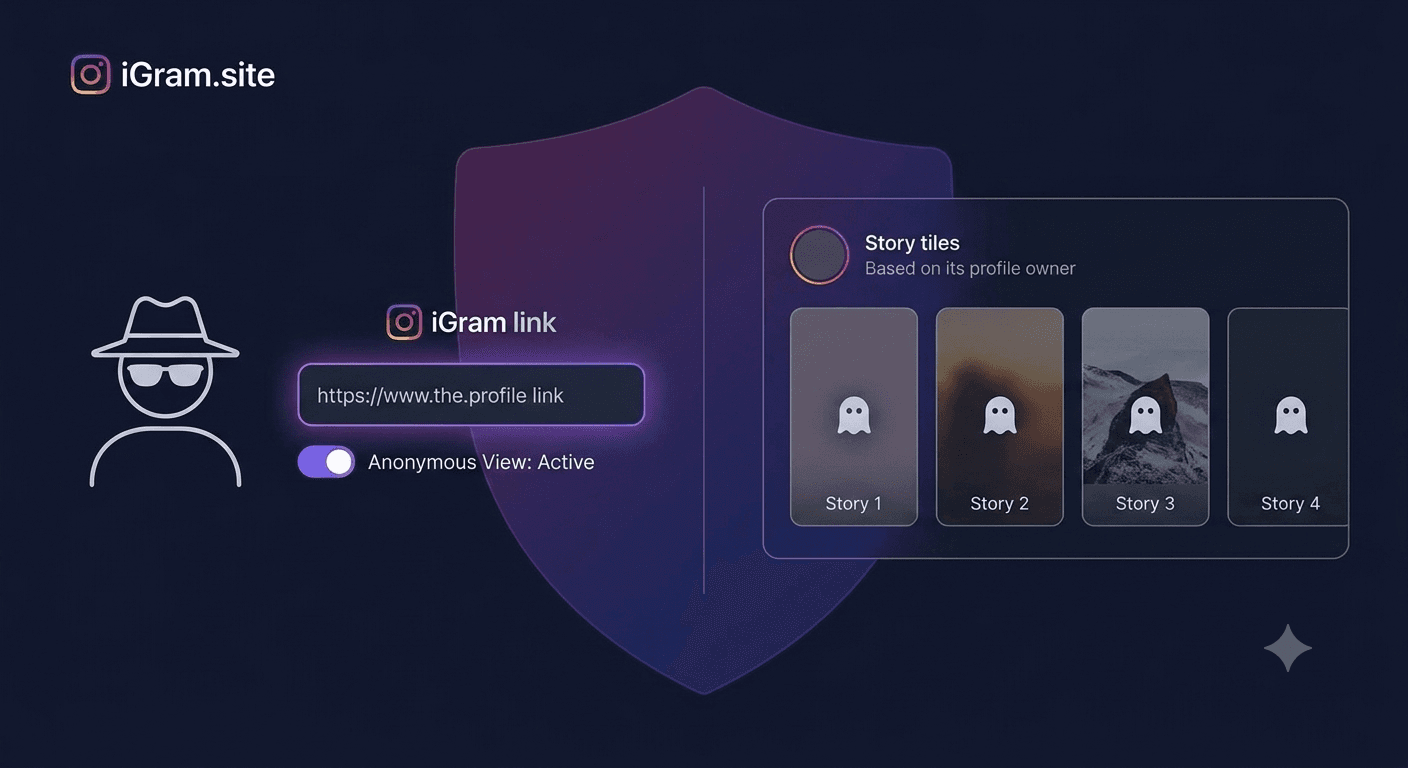
When you use iGram to download a story, iGram fetches the story through its own servers, not through your Instagram account. This means your account does not appear in the story viewer list. From the creator's perspective, iGram's download request looks like an anonymous server request, not a view from your account.
This is not a feature iGram specifically designed for covert viewing — it is simply a side effect of how the tool works technically. It retrieves the media file directly from Instagram's CDN rather than viewing the story through Instagram's interface.
That said, anonymous viewing should be used responsibly. Using it to stalk or monitor someone's stories without their knowledge, particularly in ways that cause harm, is ethically wrong regardless of the technical capability.
Practical Use Cases
Here are the most common legitimate reasons people use iGram's story downloader:
Saving your own stories: Many creators forget to save their own stories before they expire. If you post stories regularly, iGram is a quick way to preserve them. Instagram also lets you auto-save stories to your camera roll in Settings > Account > Story Controls, but iGram is useful as a backup or for stories you forgot to auto-save.
Preserving memories: A friend shares a beautiful moment from a wedding, a birthday, or a trip. You want to save it for your own collection. iGram lets you do this in seconds.
Research and competitive analysis: Social media managers and marketers often monitor what competitors or industry leaders post in their stories — temporary promotions, product launches, announcements. Downloading those stories creates a permanent reference file.
Event documentation: Event organizers, photographers, and journalists sometimes collect story content from attendees or subjects. Downloading stories is faster and higher quality than screen recording.
Saving educational content: Creators often post tutorials, tips, and valuable information in story format. A nutritionist's meal prep story, a trainer's form correction, a language teacher's tip — these are worth saving for future reference.
Archiving your own brand content: Businesses and personal brands that post marketing content to stories often want to maintain an archive for future use or portfolio purposes.
Mobile Tips for Story Downloads
A few tips that make the process smoother on mobile devices:
Open iGram in a separate tab before you start: Before opening Instagram, open a browser tab with iGram's story downloader already loaded. This way you can quickly switch between the Instagram app and your browser without having to type the URL.
Use split-screen on Android tablets: Android tablets support split-screen mode. Put Instagram on one side and your browser with iGram on the other. This lets you copy links and paste them without switching apps.
Bookmark iGram on your home screen: On iOS, in Safari, tap the Share icon and choose "Add to Home Screen." On Android, Chrome will offer "Add to Home Screen" through its menu. This creates a shortcut that opens iGram directly, saving a few seconds each time.
Download to a dedicated folder: Create a folder called "Saved Stories" in your device's Files app and always direct downloads there. This keeps story downloads separate from your camera roll and other files.
Screenshots vs Downloading: What's the Difference?
Screenshots are a common alternative for saving story content. Here is when each approach makes more sense:
Use a screenshot when:
- You just want to capture a piece of text or an image you saw in a story for quick reference
- The story contains interactive elements (polls, sliders, question boxes) that are part of the visual you want to capture
- You want to quickly note something down without leaving the app
Use iGram to download when:
- You want to save a story video (screenshots only capture a single frame)
- You want the best possible image quality (screenshots lose quality due to compression and display scaling)
- You want a clean image without the story UI elements overlaid (timestamps, the progress bar at the top, username, interactive stickers)
- You want a proper file with correct metadata
The quality difference is particularly noticeable for images. A screenshot of a story photo passes the image through your device's display, adds compression from the screenshot codec, and includes the Instagram UI framing. A downloaded JPEG is the actual file Instagram stores, without any of those quality losses.
Troubleshooting Story Downloads
"Story not found" or error after pasting the URL
This most often means the story has expired. Check whether the 24-hour window has passed. If the creator deleted the story before it expired, it will also be inaccessible. There is no way to retrieve expired or deleted story content.
The link I copied doesn't work in iGram
Double-check that you copied the story link correctly. Story URLs follow this format: https://www.instagram.com/stories/username/1234567890/
If your URL looks different, you may have accidentally copied a profile link or a post link. Go back to the story and copy the link directly from the story's three-dot menu.
I can only download one frame but the creator posted ten story frames
Each story frame is a separate piece of content with its own link. To download all ten frames, you would need to navigate to each frame individually and copy its link separately. There is currently no bulk story frame download from a single URL — this is a structural limitation of how Instagram organizes story data.
The download file is very small and won't play
This occasionally happens if Instagram serves a preview thumbnail rather than the full video file. Try copying the story URL again and pasting it fresh into iGram. If the issue persists, try on a different browser.
Frequently Asked Questions
Can I download stories from any public account? Yes. Any story from any publicly visible Instagram account can be downloaded using iGram's Story Downloader, as long as the story is still within its 24-hour window.
Will Instagram notify the creator if I download their story? No. iGram retrieves the story file from Instagram's CDN without viewing the story through the Instagram app or your account. The creator's view list will not include you.
Can I download stories after they expire? No. Once a story's 24-hour window closes and it has not been saved to Highlights, the content is no longer available on Instagram's servers. There is no way to retrieve expired stories.
Does downloading stories work for video stories too? Yes. iGram downloads both video and photo stories. Video stories are saved as MP4 files.
Can I download stories from someone I don't follow? Yes, if their account is public. You don't need to follow an account to view or download their public stories.
How do I download Story Highlights that have already been collected by a creator? Use the iGram Highlight Downloader. Navigate to the creator's profile, tap a Highlight, and copy the link from that specific frame's three-dot menu.
Why do some stories look lower quality when downloaded? Instagram applies different compression to story content depending on how it was uploaded. Stories recorded directly in the Instagram app are often more compressed than stories uploaded from a camera roll. iGram downloads whatever quality Instagram stores — it cannot improve on the source quality.
Is iGram's story downloader free? Yes, completely free. No registration, no payment, no download limits.
Written by
iGram Team
The iGram team creates in-depth guides on Instagram tools, downloading tips, and social media best practices.
Related Articles
Ready to Download?
Free, fast, no registration. Download any Instagram content in seconds.
Open iGram — It's Free