How to Download Instagram Videos Without a Watermark
Learn why some tools add watermarks to downloaded Instagram videos — and how to get clean, watermark-free downloads every time using iGram.
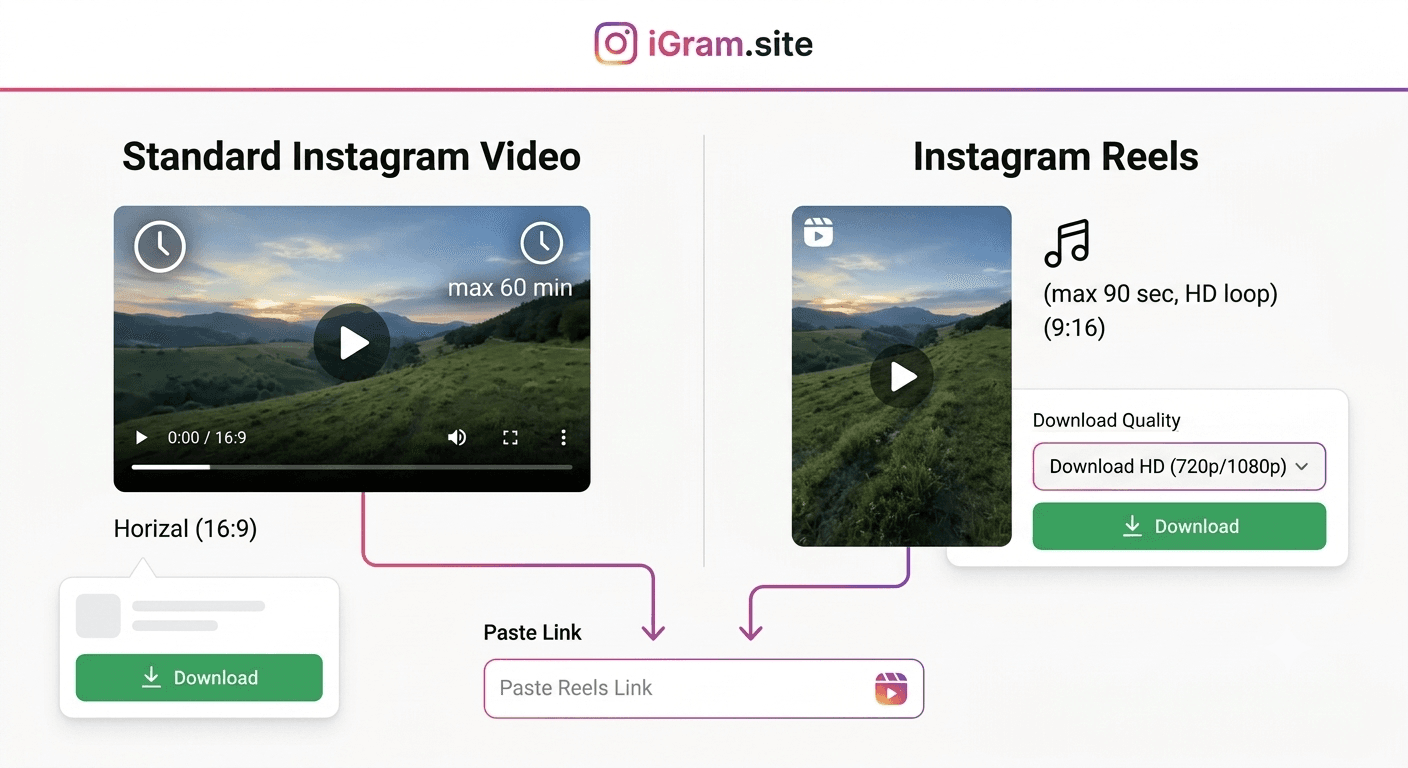
Free Instagram Downloader
Download Reels, Stories, Photos & Videos — no app needed.
If you have downloaded Instagram videos using multiple tools, you may have encountered a frustrating result: the video plays fine, but there is a logo or URL overlaid on the footage. Sometimes in the corner, sometimes as a semi-transparent bar across the bottom. This is a watermark added by the downloader tool — not by Instagram.
Understanding why this happens, which tools do it, and how to consistently avoid it will save you time and keep your downloaded content clean. This guide covers the full picture, from the source of the confusion to a reliable workflow for watermark-free downloads.
Where the Watermark Confusion Comes From
The widespread confusion about watermarks on Instagram downloads traces back to TikTok. When you download a TikTok video directly from the TikTok app, TikTok embeds a watermark on the video itself — the creator's username and the TikTok logo appear in the corner. This is TikTok's built-in behavior, baked into the export process at the platform level.
Many users assume Instagram works the same way. It does not. Instagram has never embedded watermarks into content downloaded from its platform. The original files on Instagram's servers are clean — no logos, no usernames stamped onto the video file itself.
When a downloaded Instagram video has a watermark, it means one of two things:
- The downloader tool you used added its own branding to the file during its processing step.
- The original creator manually overlaid text or a logo during their editing process (this is creator-added, not Instagram-added, and will be part of the original too).
Instagram Does Not Watermark Its Own Content
To be precise: when you access an Instagram video file through Instagram's CDN (Content Delivery Network), you get the raw video file as uploaded or re-encoded by Instagram. No watermark is embedded.
This is confirmed by the technical reality of how Instagram's CDN works. When iGram (or any downloader tool) fetches your video, it requests the file from a URL like:
https://scontent-[server].cdninstagram.com/v/[path]/[filename].mp4
This is Instagram's standard CDN endpoint. The file at this URL is the original video — no third-party processing, no stamping, no watermark. It is the same file your browser downloads when you inspect the network tab while watching a video on Instagram's website.
The implication: any watermark on a downloaded Instagram video was either created by your downloader tool or was part of the original creator's content.
Why Downloader Tools Add Watermarks
If the original file is clean, why do some tools add watermarks at all?
Branding and advertising: Adding a visible logo or URL to every downloaded video is effectively mass advertising. Every time someone shares or posts that watermarked download, the tool's name reaches a new audience. It is a growth mechanic disguised as a feature.
Perceived legitimacy: Some tools use watermarks as a way to appear more "official" — as if the watermark is a natural part of the process rather than a choice they made to promote themselves.
Freemium pressure: A common pattern is for tools to add watermarks on the free tier and charge to remove them. The watermark is not a technical necessity — it is artificial friction designed to drive upgrades.
Technical laziness: Some tools run videos through their own servers for processing and transcode the file in the process. If watermarking is part of their processing pipeline, it gets applied automatically. This is generally combined with one of the monetization motives above.
None of these are good reasons from the user's perspective. A watermark is someone else's advertisement on content you wanted to save cleanly.
What "Original Quality" Actually Means
When iGram describes its downloads as "original quality," the claim has a specific technical meaning that is worth unpacking.
iGram does not run your video through a transcoding step. When you paste an Instagram URL and request a download, iGram's server fetches the CDN URL for that video and routes it to your browser. The file you receive is byte-for-byte identical to what exists on Instagram's servers.
"Original quality" means:
- The video resolution is whatever Instagram stored (720p or 1080p, depending on the original upload).
- The bitrate is whatever Instagram's re-encoding produced — which is generally very good for 1080p content.
- No additional compression is applied by iGram's pipeline.
- No watermark, logo, border, or overlay is added.
What "original quality" does not mean:
- It is not the raw file as exported from the creator's phone before Instagram processed it. Instagram does its own re-encoding on upload. iGram delivers the best version Instagram has — not an above-Instagram-quality file, because that does not exist.
- It is not necessarily 4K. Instagram caps most content at 1080p.
How iGram Delivers Watermark-Free Downloads
iGram's architecture is deliberately minimal on the processing side. The flow is:
- You paste an Instagram URL into igram.site.
- iGram's server parses the URL, identifies the content type, and locates the corresponding CDN URL on Instagram's servers.
- iGram presents you with the available quality options (reflecting what Instagram has stored).
- You click download. Your browser makes a request to (or iGram proxies from) Instagram's CDN.
- The raw video file is delivered to your device.
There is no step where iGram opens the video file, adds a layer, re-encodes it, and delivers the modified file. The absence of that step is why there is no watermark.
This approach also means iGram cannot do things like crop, resize, or convert the video for you — but for the purpose of getting a clean, original-quality download, the minimal pipeline is a feature, not a limitation.
Watermarked vs. Clean Download: What to Look For
If you have already downloaded a video and want to know whether it is watermarked, here is how to check:
Play the video and watch the corners: Most tool-added watermarks appear in one of the four corners, typically the bottom-right or top-left. They are usually semi-transparent and show either a logo, a URL, or text like "Downloaded by [tool name]."
Check the bottom of the frame: Some tools add a bar along the bottom of the video — either a solid color bar with their branding, or a transparent watermark spanning the full width.
Check the file size: A transcoded-and-watermarked video is often slightly smaller in file size than the original because transcoding with a watermark step also typically involves some compression. This is not a definitive test, but a file that seems surprisingly small for its duration and resolution is worth scrutinizing.
Compare with the original on Instagram: Play the video on Instagram (without downloading) and pause it. Compare a still frame with a frame from your download. If the download has something in the corner that the Instagram player does not show, that is a tool-added watermark.
Step-by-Step: Getting a Clean Download Every Time
Step 1: Go to iGram directly. Visit igram.site or the specific page for your content type:
- For videos and Reels: igram.site/reels-downloader
- For photos: igram.site/photo
Step 2: Copy the Instagram link properly. On the Instagram app: tap the three-dot menu on the post and select "Copy Link." On the Instagram website: copy the URL from the browser address bar while the post is open.
Step 3: Paste the link into iGram. Click into the input field on iGram and paste your link. Do not add any extra characters or spaces.
Step 4: Select quality and download. iGram displays the available quality options. Select 1080p if available. Click the download button for your chosen quality.
Step 5: Verify the downloaded file. Play the first few seconds of the downloaded video. Check the corners and bottom edge. You should see nothing overlaid — just the original video content exactly as it appears on Instagram.
That is the complete workflow. No additional steps, no workarounds, no editing required.
If You Already Downloaded a Watermarked File
If you used a different tool and ended up with a watermarked video, your options are:
Re-download using iGram: The simplest fix. If you still have the original Instagram URL (or can find the post again), re-download using iGram. The clean version is always available as long as the original post is still up.
Crop the watermark out using video editing: If the watermark is in a corner, you can crop the video slightly to cut it out. This works if the watermark does not cover important content, but you will lose a strip of the frame and the aspect ratio may need adjusting. Tools like iMovie (Mac/iOS), CapCut (mobile), or DaVinci Resolve (desktop) make this straightforward.
Blur or paint over the watermark: If cropping would remove too much, you can use a video editor to apply a blur or solid color box over the watermark area for the video's duration. This is more work and usually less clean-looking than simply re-downloading the original.
The re-download approach via iGram is always the better answer when the original post is still available.
Use Cases Where Watermark-Free Matters Most
Re-sharing with proper credit: If you save a video to share it elsewhere — on a different platform, in a presentation, or in a group chat — a third-party tool's watermark is both misleading and disrespectful to the original creator. The clean download lets you share the content as-is and add your own proper credit ("via @creator" or similar) rather than inadvertently promoting a downloader tool.
Content archiving: If you are building an archive of Instagram content for research, reference, or documentation, watermarks degrade the fidelity of your archive. Clean files are proper records; watermarked files are artifacts of the download process, not representations of the original content.
Editing and repurposing: Creators who legitimately repurpose content they have permission to use (with collaborator agreements, licensing, or their own content) cannot watermark someone else's work on top of the original. Starting from a clean download means the editing process can proceed without working around someone else's overlay.
Client deliverables: Agencies and social media managers who download content for client approval, analysis, or reporting need clean files. Sending a client a video with a random downloader's watermark on it looks unprofessional and raises questions about your workflow.
Personal viewing and offline storage: Even for simple personal use — saving a video to watch later without internet access — a clean download is just more pleasant to watch. There is no functional reason to accept a watermark.
Keeping Original Creator Credit
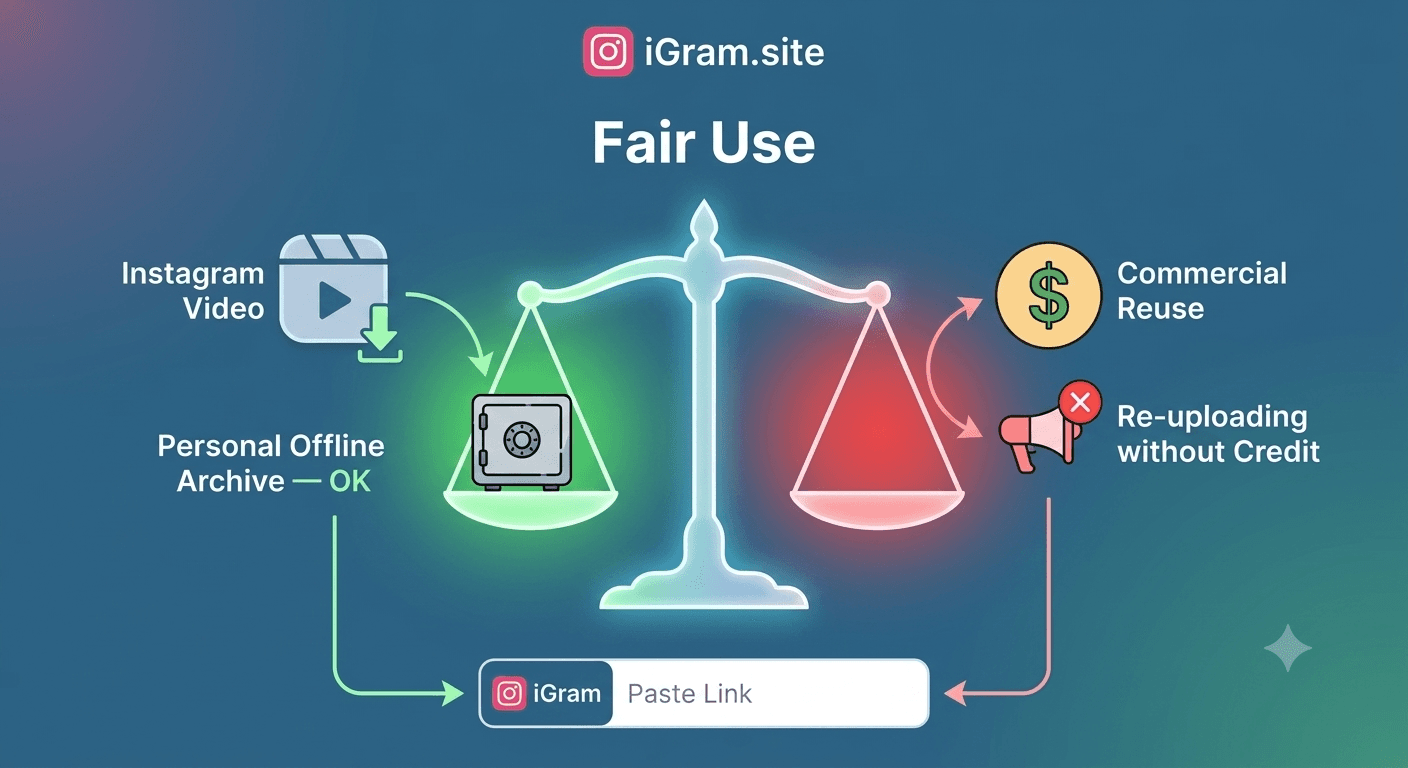
Watermark-free download does not mean attribution-free use. The absence of a tool's watermark on your downloaded file does not remove the creator's rights over the original content.
Best practices for maintaining creator credit:
When re-sharing on social media: Tag the original creator's account in your caption or in the media itself using the platform's tagging feature. Write "Credit: @originalcreator" in the caption. This is the standard practice and most creators appreciate it.
When using in presentations or documents: Add a footnote or caption citing the creator's name and Instagram URL. For commercial presentations, check whether you need explicit permission from the creator before using their work.
When archiving for research: Keep a metadata file alongside your archive entries noting the source URL, the creator's username, the original post date, and your download date. This creates a clear chain of provenance.
When the creator has specified terms: Some creators include usage terms in their bio or post captions (e.g., "DM for reposts," "No reposts without permission"). These terms do not disappear because you have a clean file — they still apply.
The iGram download process is neutral with respect to these decisions. iGram delivers the clean file. How you use it, and with what attribution, is your responsibility as the person who downloaded it.
FAQ
Why do some Instagram downloaders add watermarks if they do not have to? Watermarks are a deliberate business decision. Tools add them for branding (every shared watermarked video promotes the tool), for freemium pressure (removing the watermark requires a paid upgrade), or as a byproduct of their transcoding pipeline combined with branding incentives. There is no technical requirement that forces a downloader to add a watermark.
Is there a watermark on Instagram Reels when downloaded through iGram? No. iGram's Reel Downloader delivers the original Reel video without any overlay. What you see on Instagram is what you get in the downloaded file.
What about the TikTok logo watermark I see on videos that were originally posted on TikTok? If someone posted a TikTok video to Instagram (which is common, especially for Reels), the TikTok watermark in the video is part of the original content — it was embedded by TikTok before the creator uploaded it to Instagram. iGram delivers the file exactly as Instagram stored it, which includes any creator-added or platform-added elements that were already in the video before Instagram received it. This is not something iGram adds.
Can I download Instagram photos without any watermark? Yes. Instagram photos have no watermarks from Instagram or from iGram. The Photo Downloader delivers full-resolution JPEG files as stored on Instagram's CDN. The only overlay you might see is one the original creator added as part of their photo editing (text stickers, logos, etc.) — which are part of the original image, not added by the download process.
If iGram does not add a watermark, how does iGram make money? iGram is funded by display advertising on the website — the banner and contextual ads you see while using the tool. The revenue model is based on ad impressions and clicks, not on selling your data or degrading the files you download with branding.
I downloaded a video through iGram and I see a faint logo. Is this from iGram? No. If you see any overlay on a video downloaded through iGram, one of these is true: (a) you accidentally downloaded from a different tab or tool, (b) the creator added that element to their original post, or (c) the file you are looking at is one you downloaded previously with a different tool. iGram adds zero overlays to any downloaded file.
Does removing a watermark from a video violate copyright law? This depends on your jurisdiction and the specifics. In most countries, personal use of a watermark-removed file (for your own offline viewing) is generally not actionable. Commercial use — especially selling or distributing content you modified to remove a watermark — can raise issues. The cleanest approach is to always download the original through a tool that never adds a watermark, so the question never arises.
Will iGram ever start adding watermarks in the future? iGram's core design principle is to serve the original file from Instagram's CDN with no modification. Adding watermarks would contradict this and is not planned. The business model (advertising on the website) does not depend on watermarking downloaded content.
Written by
iGram Team
The iGram team creates in-depth guides on Instagram tools, downloading tips, and social media best practices.
Related Articles

Ready to Download?
Free, fast, no registration. Download any Instagram content in seconds.
Open iGram — It's Free