10 Best Ways to Save Instagram Content for Offline Viewing
From downloading reels to saving entire highlight collections — here are the 10 best methods to access Instagram content offline, ranked by effectiveness.
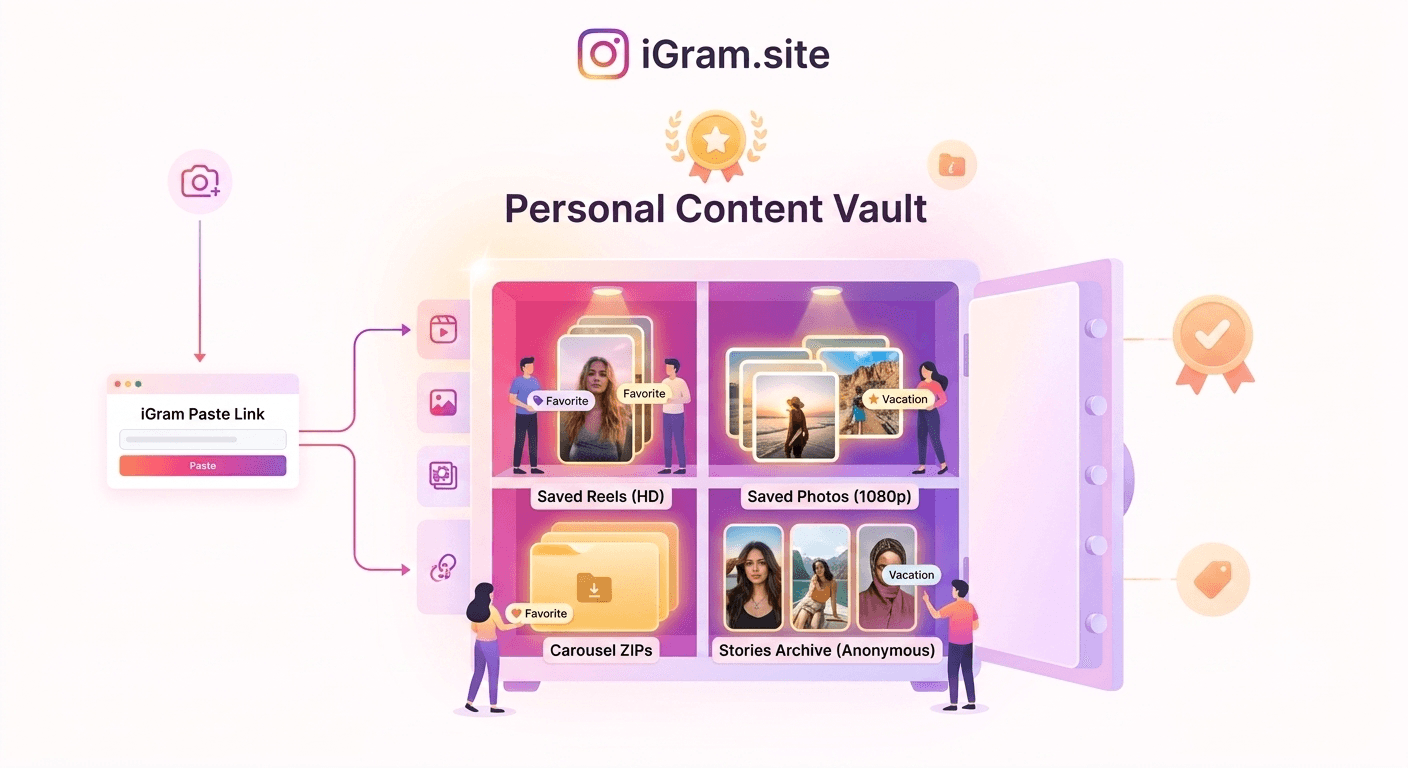
Free Instagram Downloader
Download Reels, Stories, Photos & Videos — no app needed.
Why Offline Access to Instagram Content Matters
There are legitimate reasons to save Instagram content offline that have nothing to do with misuse. International travel means limited data or roaming charges — downloading tutorials and reference content before departure avoids that cost entirely. Stories expire after 24 hours, Highlights can be deleted without warning, and accounts get suspended or closed. If you rely on any piece of Instagram content for reference, a bookmark is fragile; a downloaded copy is permanent. Researchers, journalists, and marketers archive content for systematic review. And if you rewatch the same video regularly, one download is more efficient than repeated streaming.
The 10 methods below address all of these use cases, ranked by reliability, quality, and practical applicability.
Method 1: iGram for Any Public Content
How to do it: Visit igram.site. Copy the URL of any public Instagram post, Reel, Story, Highlight, Photo, Carousel, IGTV video, or Threads video. Paste it into iGram's input field and click download.
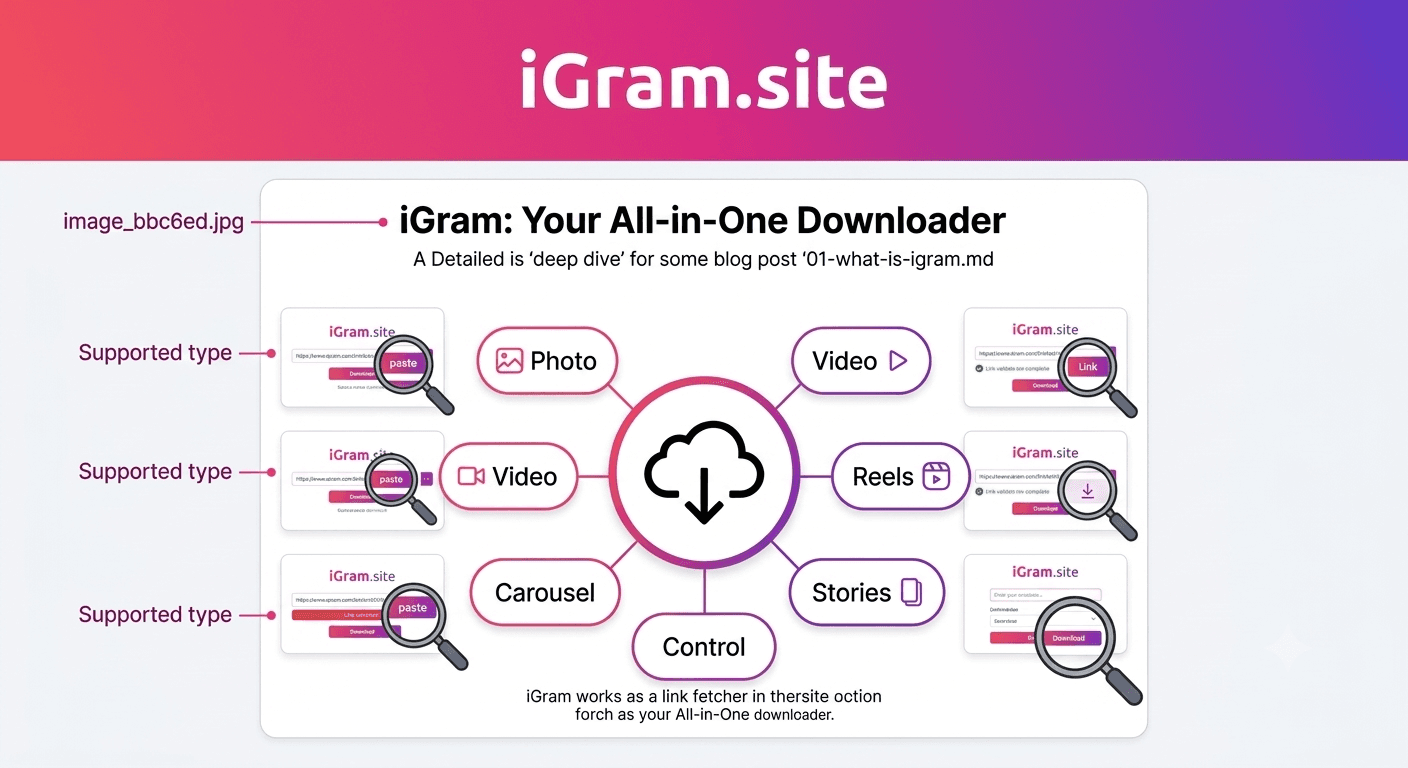
What it covers: All nine public Instagram content types: in-feed videos, Reels, Stories (within 24h), Highlights, Photos, Carousels, IGTV, Threads videos, and Profile Pictures.
Pros:
- Single tool for all content types — no need to switch between tools based on content type.
- Original quality (no compression, no watermark).
- No registration or account required.
- Works on any device with a browser.
- Free.
Cons:
- Works only for public accounts (private accounts require Method 1's companion: the Private Account Downloader, which handles auth differently).
- One link at a time for standard use (though multi-tab batch downloading is possible).
Best for: Users who need flexible, general-purpose downloading across varied Instagram content types. This is the starting point — if iGram handles what you need, you do not need any other method.
Method 2: iGram Reel Downloader for Viral Reels
How to do it: Go to igram.site/reels-downloader. Copy the Reel URL from Instagram (tap the share arrow on a Reel, then "Copy Link"). Paste it into the Reel Downloader and download in your preferred quality.
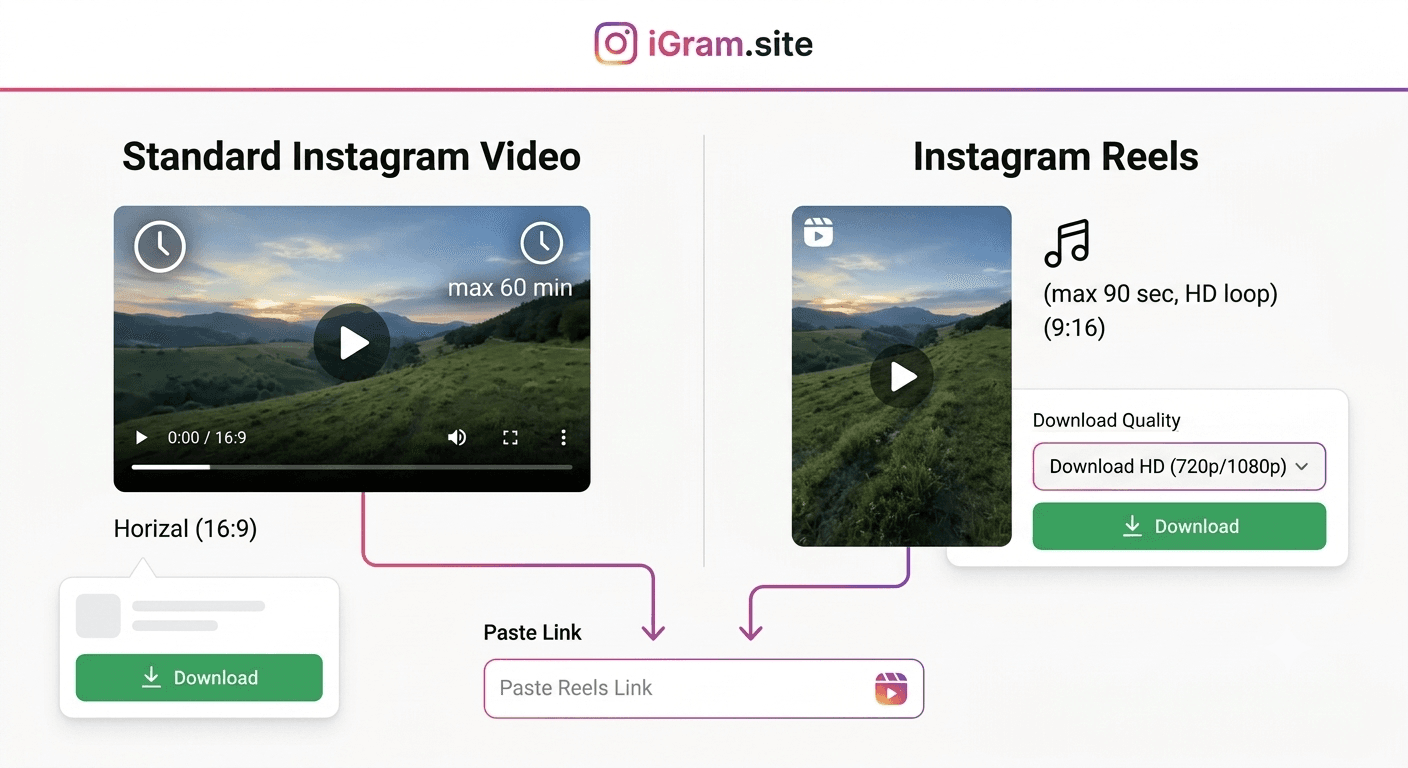
What makes Reels different: Reels are Instagram's short-form vertical video format (up to 90 seconds) with their own CDN pattern. iGram's dedicated Reel page is tuned for this URL format and presents quality options quickly.
Pros:
- Fast processing for Reel-specific URLs.
- Presents both quality options (720p and 1080p) when both are available.
- No watermark.
- Works for Reels from any public account.
Cons:
- Reel-specific — use Method 1 for other content types.
- Does not work for Reels on private accounts.
Best for: Saving viral Reels you want to keep, share internally, or use as creative reference. Also useful for saving your own Reels as a backup before they are affected by account issues.
Method 3: iGram Story Downloader Before 24h Expire
How to do it: When you see a Story you want to save, act quickly — Stories expire after 24 hours. Go to igram.site/story-saver. Copy the Story URL from Instagram (from the Story's share menu or from the browser address bar on Instagram's web interface). Paste into iGram and download immediately.
The 24-hour urgency: Once a Story expires it is gone from Instagram's servers permanently — no tool can retrieve it. To find the URL: on the app, tap the three-dot menu on the Story and tap "Copy Link"; on Instagram's website, copy the URL from the address bar.
Pros:
- Downloads Stories in original quality (photo or video).
- Works for any public account's Story while it is active.
- No notification to the creator.
Cons:
- The 24-hour window is unforgiving — miss it and the content is gone.
- Not suitable for content you discover after the fact (if the Story has already expired).
Best for: Saving time-sensitive content: breaking news from a creator, limited-time offers, tutorials posted in Story format, or event coverage that a creator is posting live. Act within the 24-hour window.
Method 4: iGram Highlight Downloader for Permanent Collections
How to do it:
Navigate to a profile's Highlights (the circles below the bio). Open the Highlight collection you want to download. Copy the Highlight URL (from the three-dot menu or the browser address bar — URL format: instagram.com/stories/highlights/[ID]/). Go to igram.site/story-saver, paste the URL, and download the individual frames or all at once.
Why Highlights warrant a dedicated method: Highlights do not expire automatically, but creators can delete them anytime and accounts can disappear. iGram's Highlight Downloader parses the entire collection and presents all frames — photos and videos — so you can save the whole collection in one session.
Pros:
- Full collection download in one session.
- Works for any public account's Highlights.
- Delivers both photo and video frames from a single Highlight.
Cons:
- Private account Highlights require different handling.
- Very large collections (80+ frames) take longer to parse.
Best for: Archiving competitor research, saving tutorial series posted as Highlights, backing up your own brand's Highlight collections, and preserving any curated content that matters to you long-term.
Method 5: iGram Photo Downloader for Full-Resolution Images
How to do it: Go to igram.site/photo. Copy the URL of any public Instagram photo post. Paste it in and download the full-resolution JPEG.
Why a dedicated photo downloader: Instagram compresses photos differently than videos. The Photo Downloader fetches the highest-resolution version stored on Instagram's CDN — not a thumbnail, but the full file. For carousel posts, iGram serves all photos in the post at once.
Pros:
- Full resolution (typically 1080 × 1080 for square, up to 1080 × 1350 for portrait).
- No quality reduction.
- JPEG format, compatible with all image software.
- Works for both single photos and carousel image posts.
Cons:
- Photos from private accounts are not accessible.
- Resolution is limited by what Instagram stores (max 1080px on the longest side for most content — Instagram re-encodes on upload).
Best for: Reference photography, design inspiration, archiving brand photography, saving infographics or educational image carousels, and backing up your own photography that was posted to Instagram.
Method 6: iGram IGTV Downloader for Long-Form Videos
How to do it:
Find an IGTV video on a creator's profile (the IGTV tab) or navigate to a direct IGTV URL (instagram.com/tv/[shortcode]). Copy the URL. Go to igram.site/igtv, paste the URL, and download.
What distinguishes IGTV: IGTV videos run up to 60 minutes, making them substantially larger files than Reels. The dedicated IGTV Downloader handles these large payloads without the timeout issues that affect general-purpose downloader tools on long videos.
Pros:
- Handles long-form video without timeout issues.
- Delivers at the highest available quality.
- Ideal for creator-length content (full tutorials, interviews, event coverage).
Cons:
- File sizes can be very large (a 60-minute 1080p video may exceed 500 MB).
- Requires a stable internet connection for long downloads.
- IGTV content is less common now than during IGTV's peak (2018–2021), but legacy content is still accessible.
Best for: Saving long tutorials, full-length creator content, interviews, or documentary-style videos you want to watch offline without buffering.
Method 7: Instagram's Built-In Save Feature
How to do it: On any Instagram post, tap the bookmark icon (bottom-right of the post) to save it to your Saved collection. You can organize saves into named Collections (tap and hold the bookmark icon to save to a specific collection).
The key limitation: The Save feature does not download content to your device — it bookmarks the post in the cloud. If the original post is deleted or the account closes, your saves disappear with it. Stories cannot be saved this way at all.
Pros:
- Dead simple — one tap.
- Organized into Collections.
- No third-party tools involved.
- Works for all content types including Reels.
Cons:
- Not truly offline — requires internet and an active Instagram account.
- If the original post is deleted, your save disappears.
- No ability to export saved content.
- Stories disappear after 24 hours even from bookmarks.
Best for: Quick reference bookmarking when you plan to access content later from within the Instagram app and do not need a permanent offline copy. Not a substitute for downloading when permanence matters.
Method 8: Instagram's Official Data Download Archive
How to do it:
Go to Instagram Settings → Your Activity → Download Your Information (or visit instagram.com/download/request). Select "JSON" or "HTML" format, choose your date range, and request the download. Instagram emails you a download link (typically within 24 hours for smaller accounts, up to 14 days for large archives).
What you get: Your archive includes your own posts (photos and videos), Stories you posted, profile information, comments, and messages. It is a comprehensive export — but it contains only your own content. Content from other accounts you saved or viewed is not included. This method is for backing up your own Instagram presence, not for saving other creators' work.
Pros:
- Official, comprehensive backup of your own account.
- Includes everything you have ever posted.
- Provided by Instagram directly — no third-party tool needed.
- Free.
Cons:
- Only covers your own content, not content from others.
- Can take up to 14 days to receive.
- File format (HTML or JSON) requires some technical comfort to navigate.
- Not practical for regular use — designed for periodic full-account backups.
Best for: Creating a comprehensive backup of your own Instagram account before closing it, migrating to a different platform, or as an annual archive of your content history. Not useful for saving other creators' content.
Method 9: Screen Recording
How to do it: On iPhone: enable Screen Recording in Control Center (Settings → Control Center → add Screen Recording). On Android: use the built-in screen recorder (swipe down from notification shade and find Screen Record). On Mac: Command + Shift + 5. On Windows: Windows + G (Xbox Game Bar) or use OBS. Start recording, play the Instagram content in full, stop recording.
Pros:
- Works for any content visible on your screen, including content from private accounts you are already approved to follow (within ethical limits).
- No links or URLs needed.
- Captures exactly what you see — useful if you want to include the profile UI or comments in your recording.
Cons:
- Quality is limited by your screen resolution, not the original video quality.
- Audio quality can be affected by system audio routing settings.
- Results in a recording of a video, not the original video file — quality is always worse than a direct download.
- File sizes are often larger than equivalent direct downloads.
- Requires manual operation (you must watch the full video in real time while recording).
- May capture unwanted elements (notifications, UI chrome).
- Not practical for long videos or large volumes of content.
Best for: A last-resort method when direct download tools cannot access a specific piece of content, or when you need to capture a specific moment including surrounding context (comments, UI). Not recommended when a direct download option is available.
Method 10: Browser Developer Tools
How to do it: Open Instagram in a desktop browser (Chrome, Firefox, or Edge). Open Developer Tools (F12 or Command + Option + I on Mac). Go to the Network tab. Play the Instagram video. In the Network tab, filter by "Media" or search for ".mp4". Find the video file request, right-click the URL, and open it in a new tab. The video plays in the browser. Right-click and "Save video as..." to download.
Who this is for: A technical method requiring comfort with browser DevTools. You access the exact CDN URL Instagram's player uses — no third-party tool involved at any step.
Pros:
- Completely tool-free — requires nothing beyond your browser.
- Delivers the exact file Instagram's player is using — original quality.
- No third-party data handling at all.
- Works in all modern desktop browsers.
Cons:
- Requires technical knowledge (Network tab, filtering requests).
- Manual and time-consuming for each video — not practical for more than a few downloads.
- Does not work easily for Stories or Highlights (their URLs are session-authenticated and expire quickly).
- Mobile browsers do not have accessible DevTools.
- Each CDN URL is unique to the session — the URL may not work if you copy it and try to share it later.
Best for: Technically inclined users who prefer not to use any third-party site at all, and who need to download one or two specific videos without installing anything or visiting a downloader site. For regular use, iGram's dedicated tools are faster and simpler.
The Verdict: Which Method Is Right for You
Methods 1–6 (the iGram tools) handle 90% of use cases — fast, free, original quality, no installation. Start with igram.site for any public Instagram content. Use Method 8 (Instagram's official archive) to back up your own account annually. Use Method 7 (Instagram's Save) for quick in-app bookmarking when permanence is not required. Fall back to Method 9 (screen recording) only when no download tool can access the content. Method 10 (browser DevTools) is for technical users who want zero third-party involvement for occasional downloads.
The conclusion: iGram's dedicated downloaders cover the vast majority of what most people need, at no cost, in original quality, without watermarks, and without anything to install.
FAQ
Can I save Instagram videos for offline viewing directly within the Instagram app? Instagram does not offer a native "download for offline" feature for most content types. The built-in Save/Bookmark feature is cloud-based, not an offline download. To truly save videos for offline viewing, you need one of the download methods in this guide.
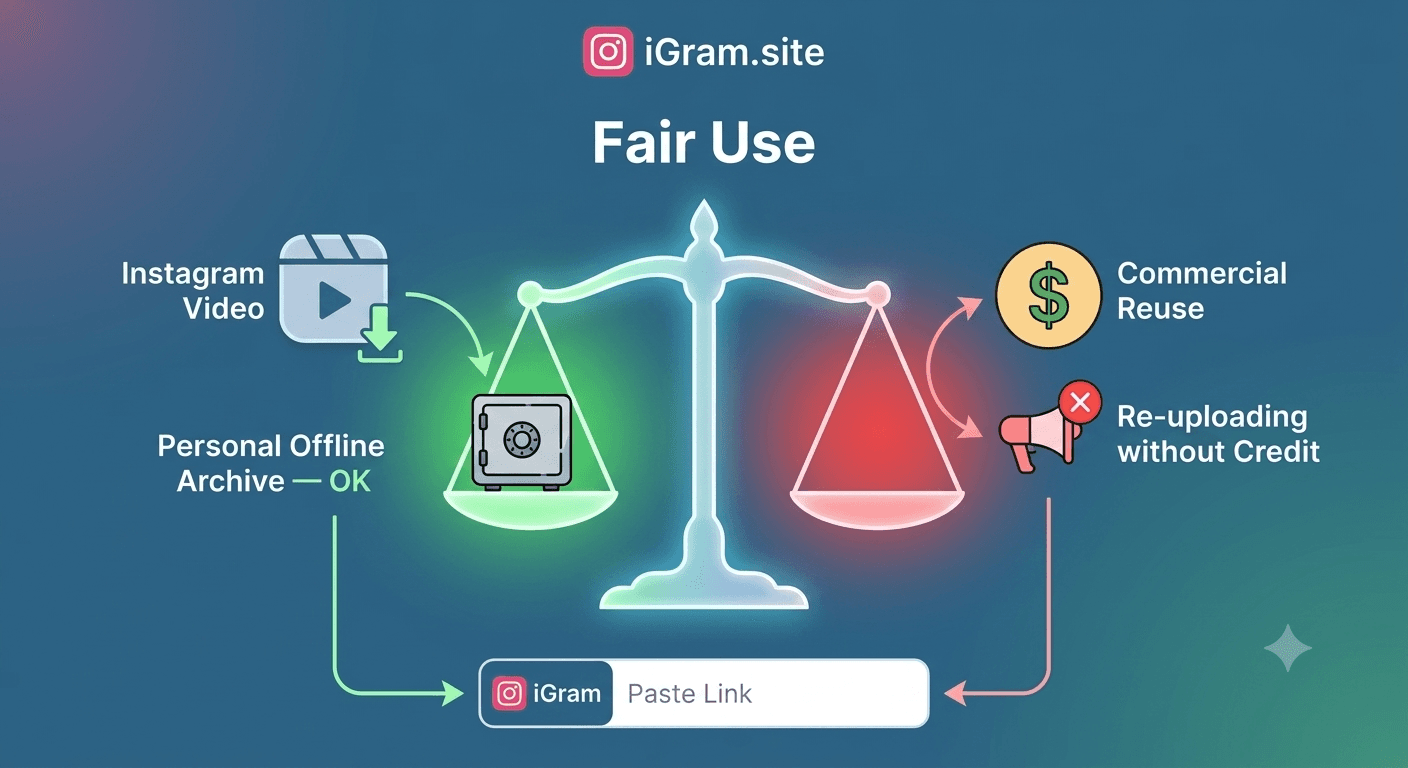
Does downloading Instagram content for offline viewing violate Instagram's Terms of Service? Instagram's Terms of Service restrict automated scraping and commercial redistribution. Downloading content for personal offline viewing is a gray area — most platforms prohibit it in their terms, but enforcement is focused on commercial-scale use. For personal reference use, the practical risk is minimal. For any commercial or redistributive use, you should obtain the creator's explicit permission.
Which method delivers the best video quality? Methods 1–6 (iGram tools) and Method 10 (browser DevTools) all access the original CDN file and deliver identical quality. Screen recording (Method 9) is always lower quality than direct download. Instagram's data archive (Method 8) delivers your own original upload quality but does not apply to other creators' content.
Is there a way to download all of an account's public posts at once? None of the browser-based methods in this guide support automated full-profile bulk downloads. iGram handles carousel posts natively and supports multi-tab parallel downloads for efficiency across a handful of posts. For high-volume systematic archiving, specialized desktop tools exist, though their Instagram TOS compliance is more complex.
How do I download Instagram Highlights that have videos mixed with photos? iGram's Highlight Downloader handles mixed-format highlights automatically. When you paste a Highlight URL, iGram lists all frames in the collection labeled as either MP4 (video) or JPG (photo). Download each individually with one click — no format distinction required in advance.
Can I download Instagram content on an iPhone without any apps? Yes. All iGram tools work in Safari on iPhone. To save a file rather than have it open in the browser, long-press the download button and select "Download Linked File." The file saves to the Files app. Chrome on iOS handles this more intuitively if you prefer a simpler flow.
What is the best method for saving a tutorial series posted as Instagram Highlights? Method 4 — iGram's Highlight Downloader — is ideal. Paste the Highlight URL, iGram parses all frames in the collection, and you download each tutorial segment individually in one session.
Written by
iGram Team
The iGram team creates in-depth guides on Instagram tools, downloading tips, and social media best practices.
Related Articles
Ready to Download?
Free, fast, no registration. Download any Instagram content in seconds.
Open iGram — It's Free