How to Download Instagram Videos Without Installing Any App
Download any Instagram video to your phone or PC in HD quality — without installing apps or browser extensions. Free and instant with iGram.
Free Instagram Downloader
Download Reels, Stories, Photos & Videos — no app needed.
Most people assume downloading an Instagram video requires installing a dedicated app. You browse the Play Store or App Store, pick something with decent reviews, grant it a pile of permissions — camera, storage, contacts — and hope for the best. Then you deal with ads, nag screens, or worse: the app quietly sitting in the background with access to your files.
There is a better path. Browser-based Instagram downloaders like iGram require nothing installed. You paste a link, pick your quality, and the file is on your device. No permissions, no storage overhead from a dormant app, no trust required beyond the single web session you control.
This guide covers every scenario: in-feed videos, IGTV, long clips vs. short reels, iOS download quirks, Android gallery saves, troubleshooting steps, and batch approaches.
Why Browser-Based Tools Beat Native Apps
When you install an app, you hand it a persistent foothold on your device. Most Instagram downloader apps on third-party stores request storage access (which means they can read every file you own), sometimes internet permissions that go beyond what downloading requires, and occasionally contacts or device ID access that has nothing to do with downloading video.
A browser-based tool operates differently:
- Stateless: The page loads, processes your request, and closes. There is no background process.
- No permissions: The browser handles the download natively. The downloader site never touches your filesystem directly.
- Transparent: You can see what domain you are on. A rogue app can hide its data collection; a website's requests are visible in DevTools if you want to inspect them.
- No storage bloat: An installed downloader app might be 40–80 MB of space. A browser tab is nothing.
- Cross-platform: The same tool works on your phone, tablet, laptop, and work computer without reinstalling anything.
iGram is a pure browser-based tool. You visit the site, paste the Instagram link, and download. That is the entire interaction.
Downloading Regular In-Feed Instagram Videos
In-feed videos are the standard posts you see while scrolling. They can be up to 60 minutes long, though most creators stick under 3 minutes for engagement reasons.
Step 1: Find the video on Instagram. Open Instagram in the app or browser. Navigate to the video you want to download.
Step 2: Copy the post link.
- On mobile (app): Tap the three-dot menu (⋯) in the top-right corner of the post. Select "Copy Link."
- On desktop (browser): Click the three-dot menu on the post, then "Copy Link." Alternatively, copy the URL directly from the browser address bar if you have opened the post as a standalone page.
Step 3: Go to iGram. Open igram.site in your browser. You do not need to open a new tab — the same tab works fine.
Step 4: Paste and download. Paste the copied link into the input field on the homepage and click the download button. iGram fetches the video metadata, presents the available quality options, and you click the format you want to save.
Step 5: Save the file. Your browser will either prompt you to choose a save location or automatically download to your default downloads folder, depending on your browser settings.
The entire process takes under 30 seconds for most videos.
Downloading IGTV Videos (Long-Form Content)
IGTV videos — Instagram's long-form vertical video format — can run up to 60 minutes for verified accounts. The download process is nearly identical to in-feed videos, but iGram's IGTV Downloader is specifically optimized to handle these longer files without timeout issues.
Finding the IGTV link:
IGTV content often lives in a dedicated section of a creator's profile. Tap or click their profile, then look for the IGTV tab. On the Instagram app, long-press a video to see sharing options. On the web, open the IGTV video to get a dedicated URL (it will typically look like instagram.com/tv/[shortcode]).
Why use the dedicated IGTV page: iGram's IGTV page is tuned for larger file sizes. If you paste an IGTV link into the main downloader it will still work, but navigating to the dedicated IGTV downloader page can be faster for long videos because the interface is configured with the right timeout and chunk expectations for large files.
Processing time: A 30-minute IGTV video at 1080p might be 500 MB or more. The download to your device depends on your internet connection, not on iGram's processing. iGram fetches from Instagram's CDN and hands the stream to your browser as fast as your connection allows.
Long Videos vs. Short Clips: What Changes
The download mechanism is the same for both, but there are practical differences to know:
| Factor | Short clip (under 2 min) | Long video (2 min – 60 min) | |---|---|---| | File size | Typically 5–50 MB | Can exceed 500 MB | | Download time | Seconds | Minutes | | Quality options | 720p, 1080p | 720p, 1080p (same, but file size difference is large) | | Mobile storage | Rarely an issue | Check available storage before downloading | | Browser behavior | Downloads without interruption | May require stable connection |
For long videos on mobile, downloading over Wi-Fi is strongly recommended. A 400 MB file on a 4G connection might stall if your signal fluctuates. Starting the download at home on Wi-Fi, even if you want to watch offline later, is the most reliable approach.
Video Quality Options: 720p vs. 1080p
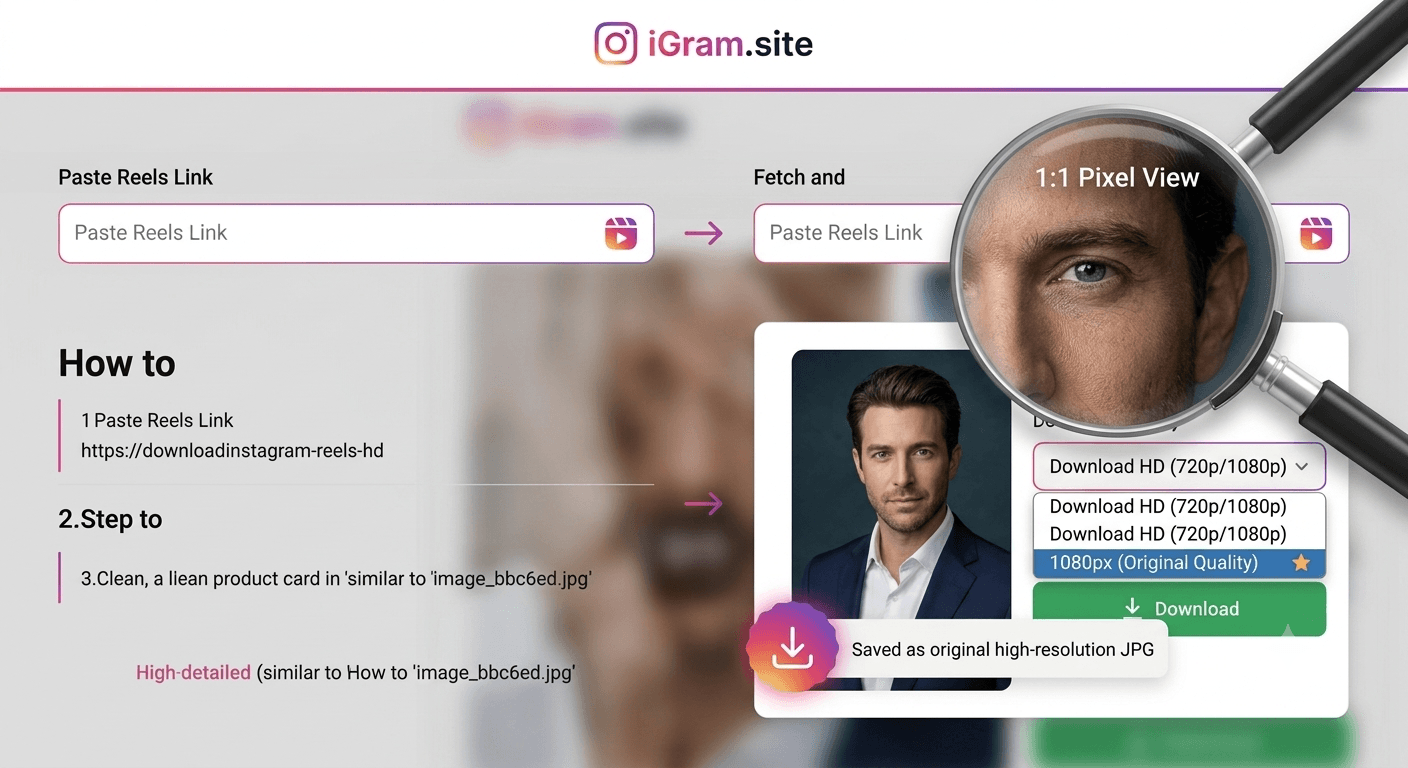
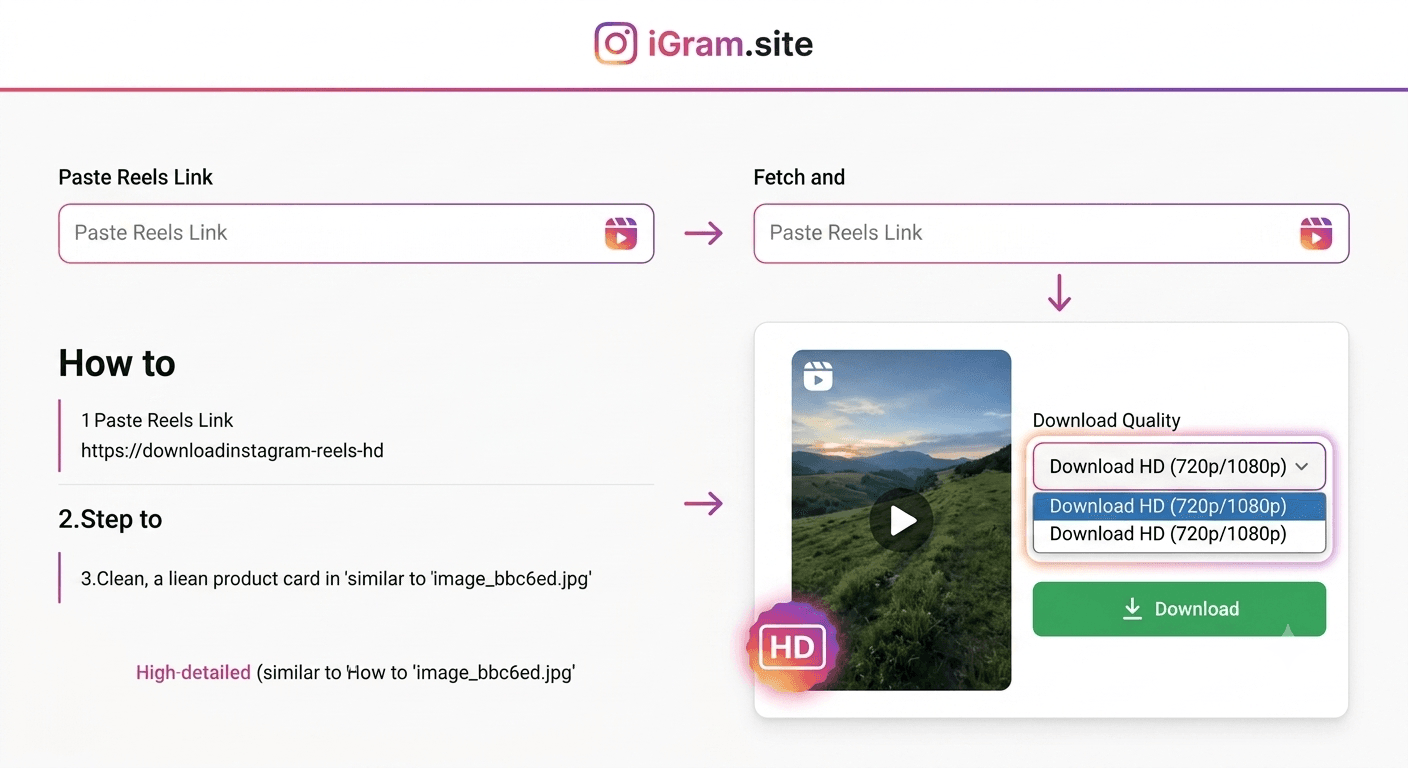
When you paste an Instagram video link into iGram, the results show the quality options Instagram's CDN has available for that specific video. This is an important distinction: iGram does not transcode or compress video. It serves whatever Instagram has stored.
What this means practically:
- If Instagram stored the original upload at 1080p, iGram offers 1080p.
- If Instagram re-encoded the upload at 720p (which happens with older videos or some account types), 1080p will not appear because it does not exist on Instagram's servers.
- iGram never upscales. A 720p video presented as "1080p" would be fraudulent — iGram does not do this.
Which quality should you choose: For archiving or re-editing: always 1080p if available. For sharing via messaging apps (WhatsApp, Telegram): 720p is often sufficient and loads faster for the recipient. For viewing on your phone screen: the difference between 720p and 1080p on a 6-inch screen is minimal.
Downloading on iOS (Safari Quirks Explained)
iOS is the most complex platform for browser downloads because Safari has historically handled file downloads differently from Chrome or Firefox.
The Safari behavior: When you tap a download link in Safari on iPhone or iPad, instead of saving the file to Photos or Files, Safari sometimes opens the video in a new tab and plays it in-browser. This is not a bug in iGram — it is Safari's default behavior for video files.
How to actually save the file on iOS:
- After iGram presents your download options, long-press (press and hold) the download button.
- Select "Download Linked File" from the menu that appears.
- The file saves to your iPhone's Files app, under "Downloads."
- From Files, you can share it to Photos using the share sheet if you want it in your camera roll.
Alternative: Use Chrome on iOS. Chrome on iPhone handles video downloads more intuitively. Tapping a download link triggers a standard download prompt rather than in-browser playback. If you frequently download videos on iPhone, Chrome may be the easier browser for this workflow.
iOS 16+ change: Starting with iOS 16, Safari improved download handling. If you have an up-to-date iPhone, tapping the download button may now trigger a proper "Download" dialog. Check your iOS version — on newer devices the experience is much smoother.
Downloading on Android
Android is the most straightforward platform for browser-based video downloads.
Standard process:
- Open iGram in Chrome (or any Android browser).
- Paste the Instagram video link.
- Tap your preferred quality.
- Chrome shows a download notification in the status bar.
- Once complete, the video appears in your Downloads folder and, depending on your phone's gallery app settings, may also appear in your gallery.
Saving to gallery: Some Android phones do not automatically show Downloads in the gallery. If you download a video and cannot find it in Google Photos or your stock gallery app:
- Open your file manager app.
- Navigate to the Downloads folder.
- Long-press the video and select "Move to" or "Copy to" your DCIM or Pictures folder.
- The gallery app will then index it.
Direct-to-gallery browsers: Some Android browsers (like Samsung Internet) have a setting that automatically adds downloaded files to the media library. Check your browser's download settings if you want this behavior automatically.
Troubleshooting: Video Not Loading or Link Expired
Problem: "Video not found" or blank result
- Double-check that the Instagram account is public. iGram cannot access content from private accounts through this standard flow.
- Confirm you copied the full URL, not just part of it. Instagram app links sometimes truncate if you copy too quickly.
- Try opening the Instagram post in a browser (not the app) and copying the URL from the address bar — this gives the cleanest link format.
Problem: Link expired or invalid Instagram story links expire after 24 hours. If you are trying to download a story and the link was shared more than a day ago, the content is gone from Instagram's servers and cannot be retrieved. For active stories, always download promptly.
Problem: Video loads but download button does nothing
- Disable any browser ad blockers for igram.site temporarily. Some aggressive blockers intercept download triggers.
- Try a different browser. Browser extension conflicts are a common cause.
- Clear your browser cache and reload iGram.
Problem: Downloaded file is corrupted or will not play
- The download may have been interrupted. Try again on a stable connection.
- Make sure your device has enough storage. A partial download due to storage running out produces an unplayable file.
- Verify the downloaded file extension is
.mp4. If your browser saved it as a generic file, rename it with.mp4and try opening it again.
Batch Downloading Videos from a Profile
iGram's standard flow is one video at a time — you paste a link, download, repeat. For downloading multiple videos from a single creator's profile, there is an efficient workflow:
Method 1: Queue it manually. Open the creator's profile, copy each video link one at a time, and download each in sequence. For 5–10 videos this is entirely manageable. iGram processes quickly, so you can move through a queue in a few minutes.
Method 2: Open multiple iGram tabs. Open iGram in several browser tabs simultaneously. Paste a different video link in each tab, initiate all downloads, and let them run in parallel. Most browsers handle 3–5 simultaneous downloads without issue. This roughly multiplies your throughput.
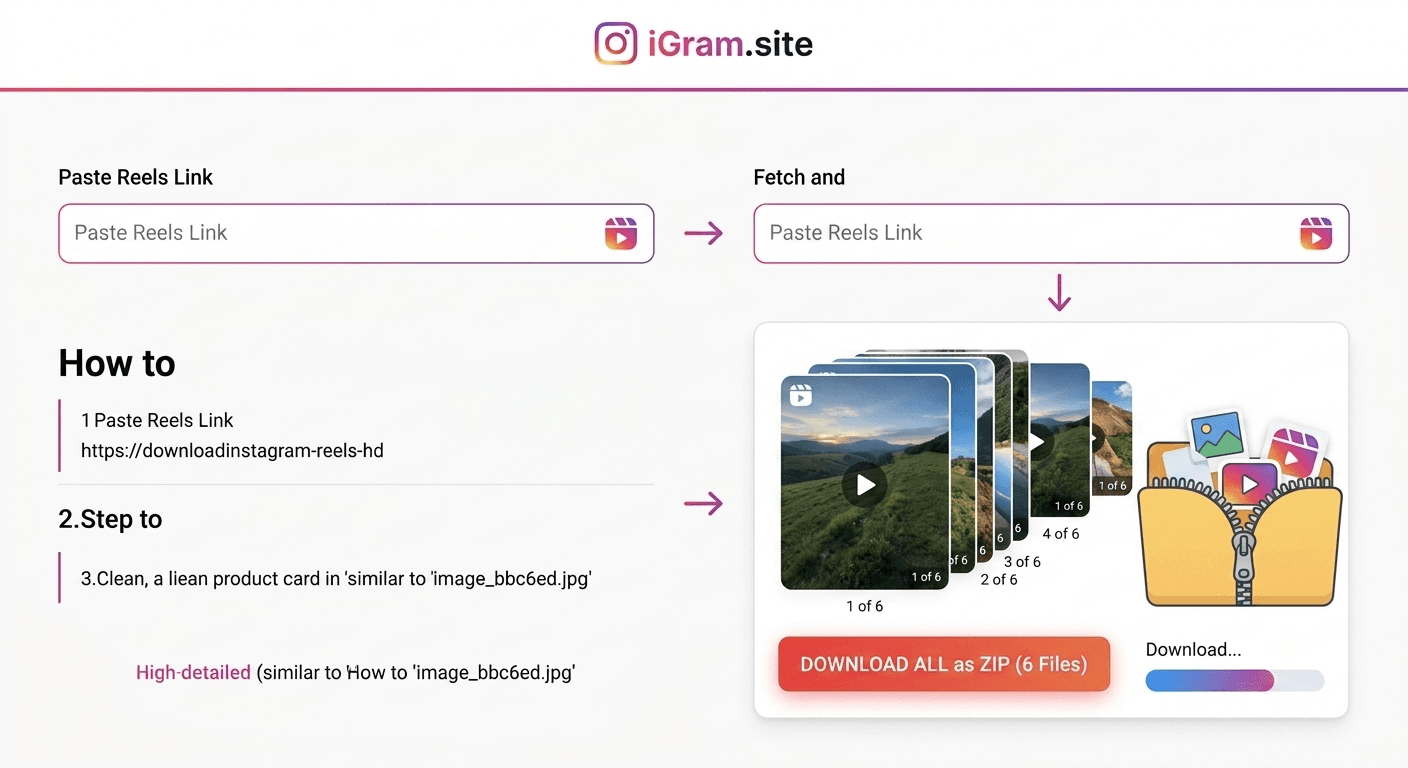
Method 3: Use the carousel downloader for multi-photo/video posts. If a post contains multiple videos (a carousel), you do not need to download each individually. iGram's Carousel Downloader handles these posts and presents all media in the post for download at once — saving significant time compared to individual link copying.
A note on scale: iGram is designed for individual use — downloading content you want to save, reference, or repurpose. For large-scale archiving of hundreds of videos, browser-based tools will work but require patience. The multi-tab method above is the most efficient approach within a browser context.
FAQ
Do I need to create an account on iGram to download Instagram videos? No. iGram requires no account, no email, no registration of any kind. You visit the site, paste a link, and download. That is the complete interaction.
Can I download videos from private Instagram accounts? iGram's standard downloader works only with public content. For private accounts, iGram offers a separate Private Account Downloader that handles authentication differently — though you should only download content you have legitimate access to.
Will the video have a watermark after downloading? No. iGram does not add watermarks to downloaded content. The file you receive is the original video from Instagram's servers, exactly as Instagram stored it.
Does downloading a video notify the original poster? No. Instagram does not have a mechanism to notify creators when their videos are downloaded by third-party tools. The download happens via a direct request to Instagram's CDN, which is indistinguishable from normal viewing activity.
What video formats does iGram download Instagram videos in? Instagram stores videos as MP4 files. iGram delivers the same MP4 format — there is no conversion step. MP4 is universally compatible with phones, computers, smart TVs, and editing software.
Can I download videos from Instagram on my iPhone without any app? Yes. iGram works in Safari and Chrome on iPhone. Safari requires a long-press on the download button to save the file properly (choose "Download Linked File"). Chrome on iOS behaves more like a standard desktop download.
Is there a file size limit for videos I can download? iGram does not impose a file size limit on downloads. However, very large IGTV files (several hundred MB) will take longer to download, and your device needs sufficient storage space to receive them.
What happens if the download stops halfway? If your connection drops mid-download, the partial file will be unusable. Simply restart the download from iGram. If repeated interruptions occur on mobile, switch to Wi-Fi. On desktop, check for VPN or firewall interference with large file transfers.
Written by
iGram Team
The iGram team creates in-depth guides on Instagram tools, downloading tips, and social media best practices.
Related Articles
Ready to Download?
Free, fast, no registration. Download any Instagram content in seconds.
Open iGram — It's Free